
Widgets and Control Center controls
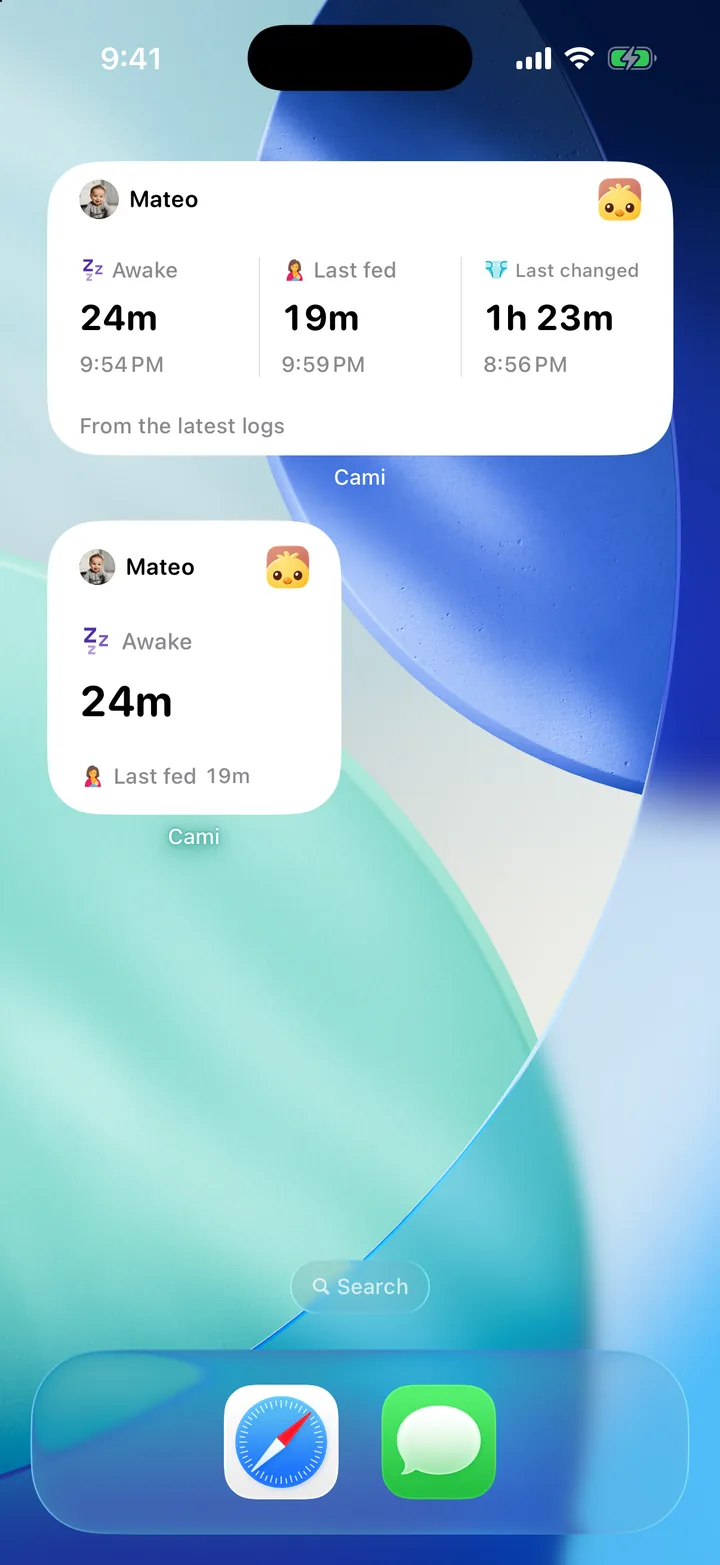
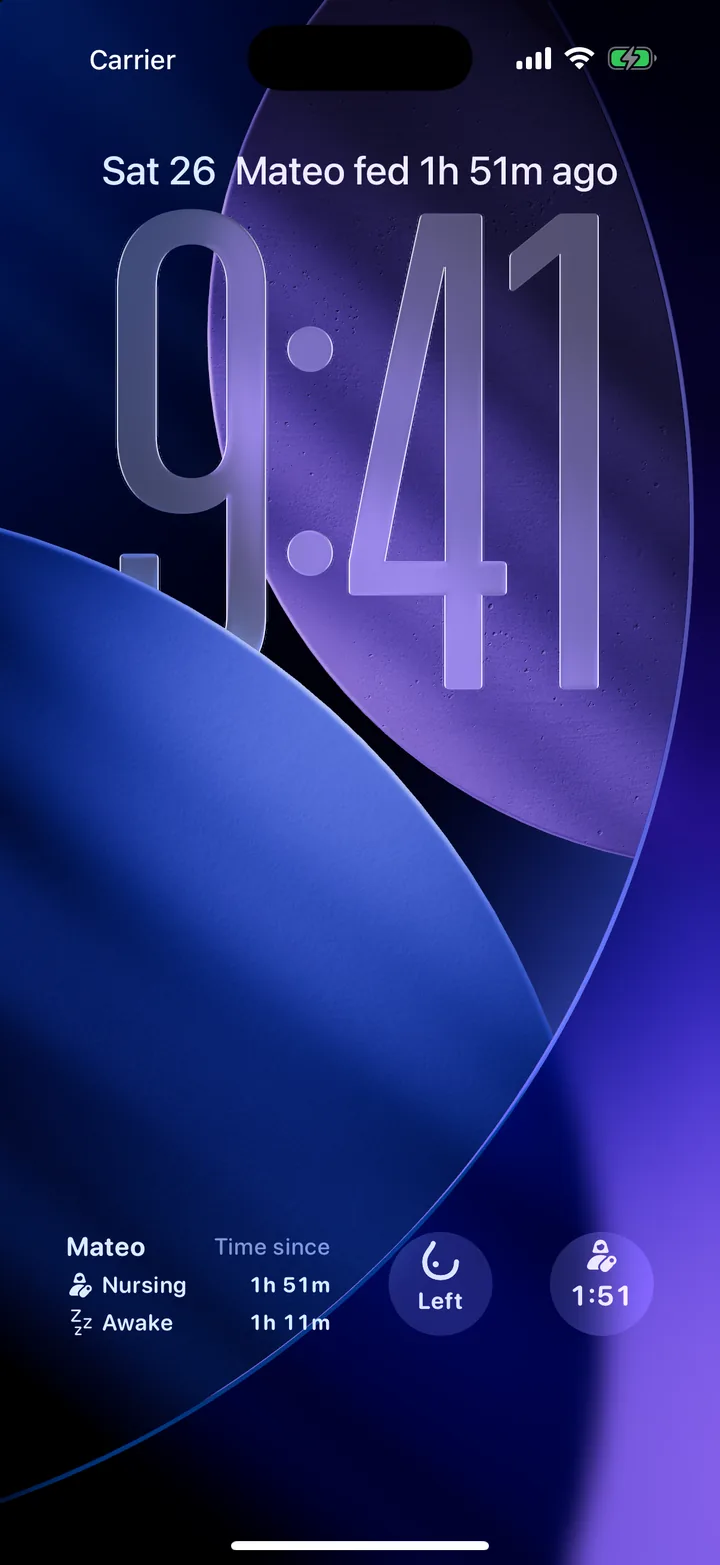
Cami has a Home Screen widget, three Lock Screen widgets and two controls. Touch and hold the Home Screen or Lock Screen, add a widget, and pick Cami.
On this page
Each widget and control shows or logs for one child, which you choose.
The widgets
| Widget | Where | What it shows | Options |
|---|---|---|---|
| Baby Now | Home Screen, small or medium | Sleep, feeding and diaper facts: how long awake or asleep, time since the last feed and the last diaper change. | Baby, Show baby name |
| Last Care | Lock Screen, rectangular | Time since the last feed, diaper or pump, and time awake. | Baby, Show baby name |
| Last Care | Lock Screen, one line above the clock | One line: time awake, or time since the last feed or diaper change. | Baby, Show: Whichever is longer, Time awake, Time since the last feed or Time since the last diaper change |
| Last Nursed Side | Lock Screen, round or rectangular | The last breast used and time since that feed. | Baby, Show breast icon |
| One Clock | Lock Screen, round | One clock: time since a feed, or time awake. | Baby, Show: Since feed or Time awake |
Tap a widget to open Cami.
Add a widget to the Home Screen
- Touch and hold an empty spot on the Home Screen until the apps jiggle.
- Tap Edit, then Add Widget.
- Search for Cami, pick Baby Now and a size, then tap Add Widget.
- To pick the child, touch and hold the widget and tap Edit Widget.
Add a widget to the Lock Screen
- Touch and hold the Lock Screen, then tap Customize and choose the Lock Screen.
- Tap the widget area under the clock, or the line above the clock for the one-line Last Care.
- Pick Cami, then the widget.
- Tap the widget you added to choose the baby and its options.
Controls
Controls work from Control Center, and you can also put them on the Lock Screen or on the Action button.
| Control | What it does | Options |
|---|---|---|
| Sleep | Starts and ends a sleep timer without opening Cami. | Baby |
| Log Care | Opens Cami at a bottle, nursing, diaper or pumping form for your baby. | Baby, Care |
- Open Control Center and touch and hold an empty spot.
- Tap Add a Control, search for Cami and pick the control.
- Touch and hold the control to choose the baby.
If a control says Choose a baby, it has no child yet. Touch and hold it and choose one.
Your family on your widgets
Widgets show what Cami on this iPhone knows, including what your partner logged. If a widget says Not updated in a while, open Cami. See My widget isn’t updating.

Still need help?
Write to us and a person reads it, usually within a day. From the app, Send Feedback attaches the details that help us fix it.
In Cami: More › Settings › Send Feedback