Members, roles and the family owner
Everyone in the family sees and logs everything. A role only changes how nursing reads. The owner alone can remove people or delete the family.

On this page
See who is in the family
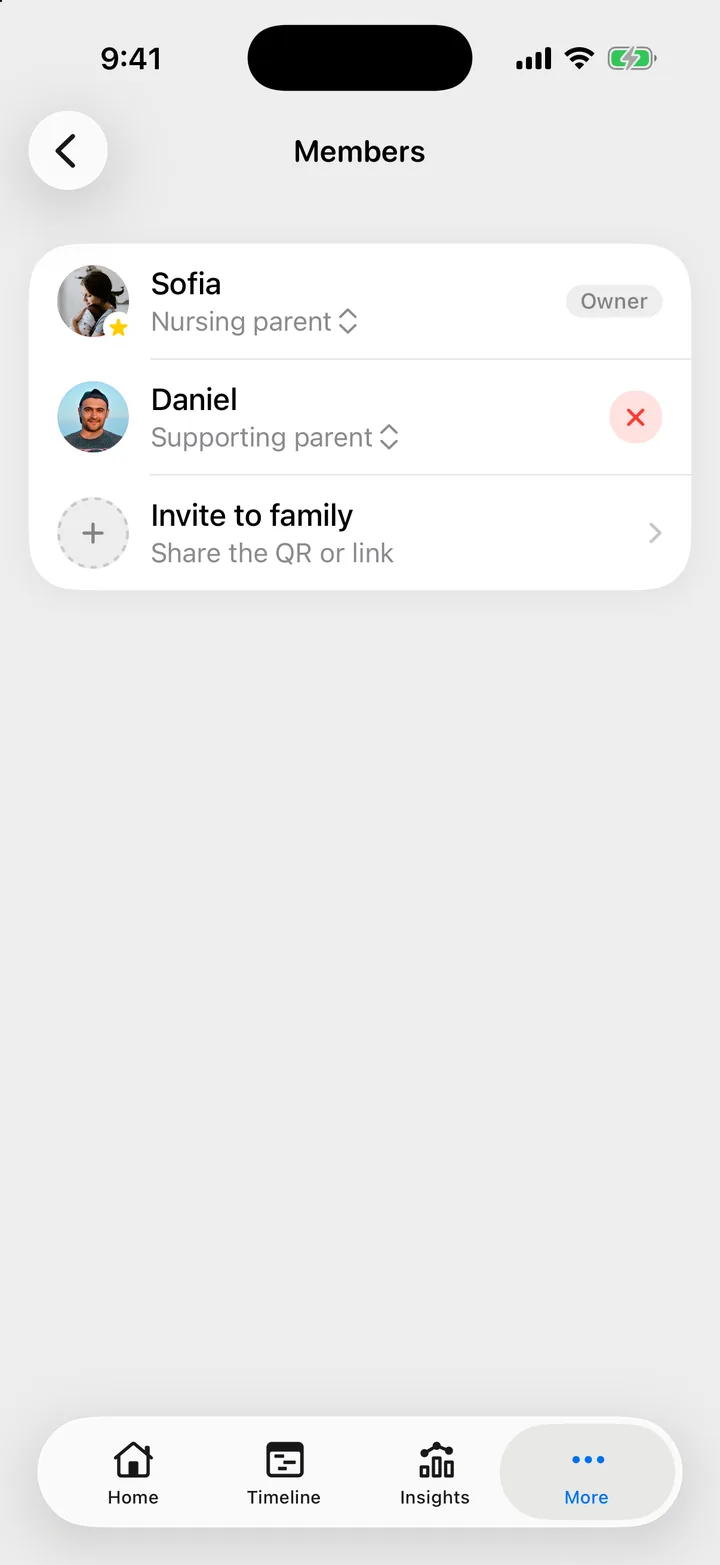
Open More, Members, or tap the faces at the top of the More tab. Each row shows a name and a role. Your own row has a star, and the owner’s row has an Owner tag.
Set your role
- Open More, Members.
- Tap the line under your name. It says Set your role until you pick one.
- Choose Nursing parent, Supporting parent or Caregiver.
Your role helps Cami show nursing from your point of view. It gives no extra rights, and you can change it at any time. If you are in more than one family, you can have a different role in each.
The owner can also set another member’s role, for example for a grandparent who picked the wrong one. Everyone else can change only their own.
What every member can do
- See every child and the whole history, from the first entry.
- Log, edit and delete entries. A deleted entry is gone for everyone.
- Share the family’s QR code and invite link.
- Add a child, edit a child’s profile and rename the family.
What only the owner can do
The owner is the person who created the family, until they hand it to someone else. Only the owner can:
- Remove a member. See Remove a member, leave or delete a family.
- Turn invites off and on, and make a new invite link.
- Transfer ownership.
- Delete the family.
Make someone else the owner
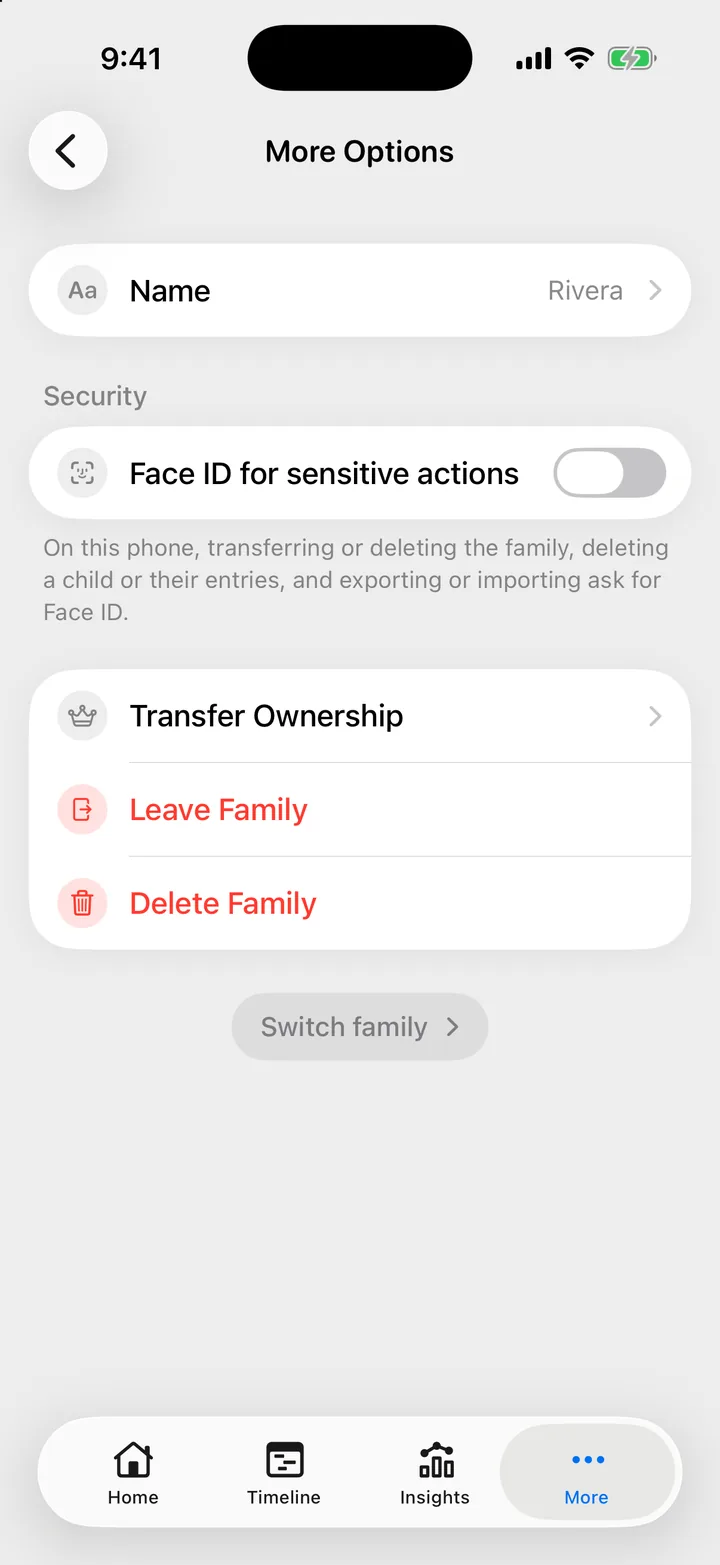
- Open More, More Options.
- Tap Transfer Ownership.
- Tap the member who becomes the owner, then confirm.
You stay in the family as a member. The new owner can use the owner’s controls at once. Transfer Ownership shows only when there is someone else in the family.
In Cami 1.2, this screen is called Manage Family.
Your name and photo
The name and photo the family sees come from your account. Change them in More, Settings: tap your name at the top.

Still need help?
Write to us and a person reads it, usually within a day. From the app, Send Feedback attaches the details that help us fix it.
In Cami: More › Settings › Send Feedback