Invite your partner, a grandparent or a nanny
Open More, tap Invite, and send the link or let them scan the QR code. They join your family and see everything you have logged.

On this page
Before you start
- The person you invite needs an iPhone with Cami and a Cami account of their own. Cami asks them to create one when they join.
- Anyone in the family can send the invite. There is no limit to how many people can join.
Send the invite
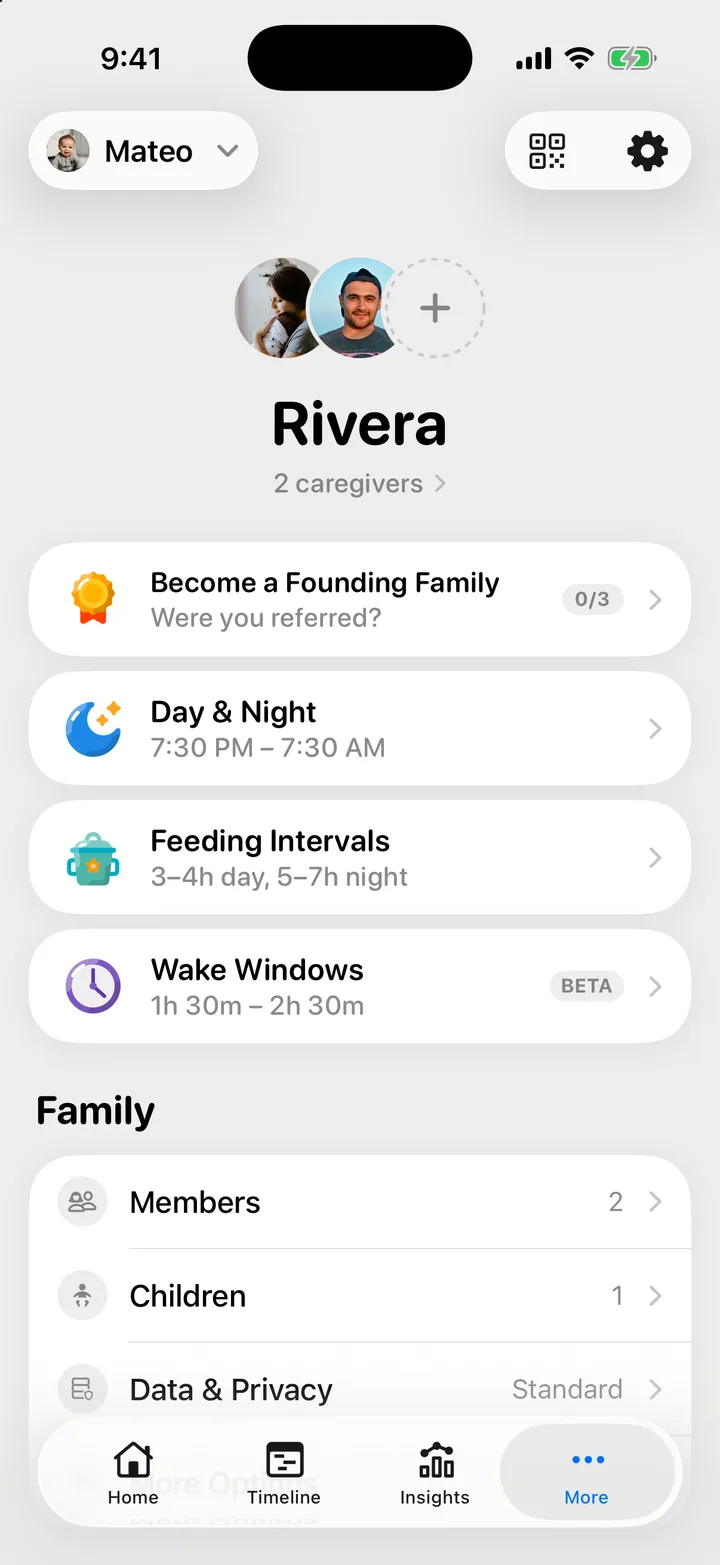
- Open the More tab.
- Tap Invite, the QR code button at the top. The empty seat next to your family’s faces opens the same screen.
- Tap Share Link and send it the way you usually send things, like Messages, WhatsApp or email.
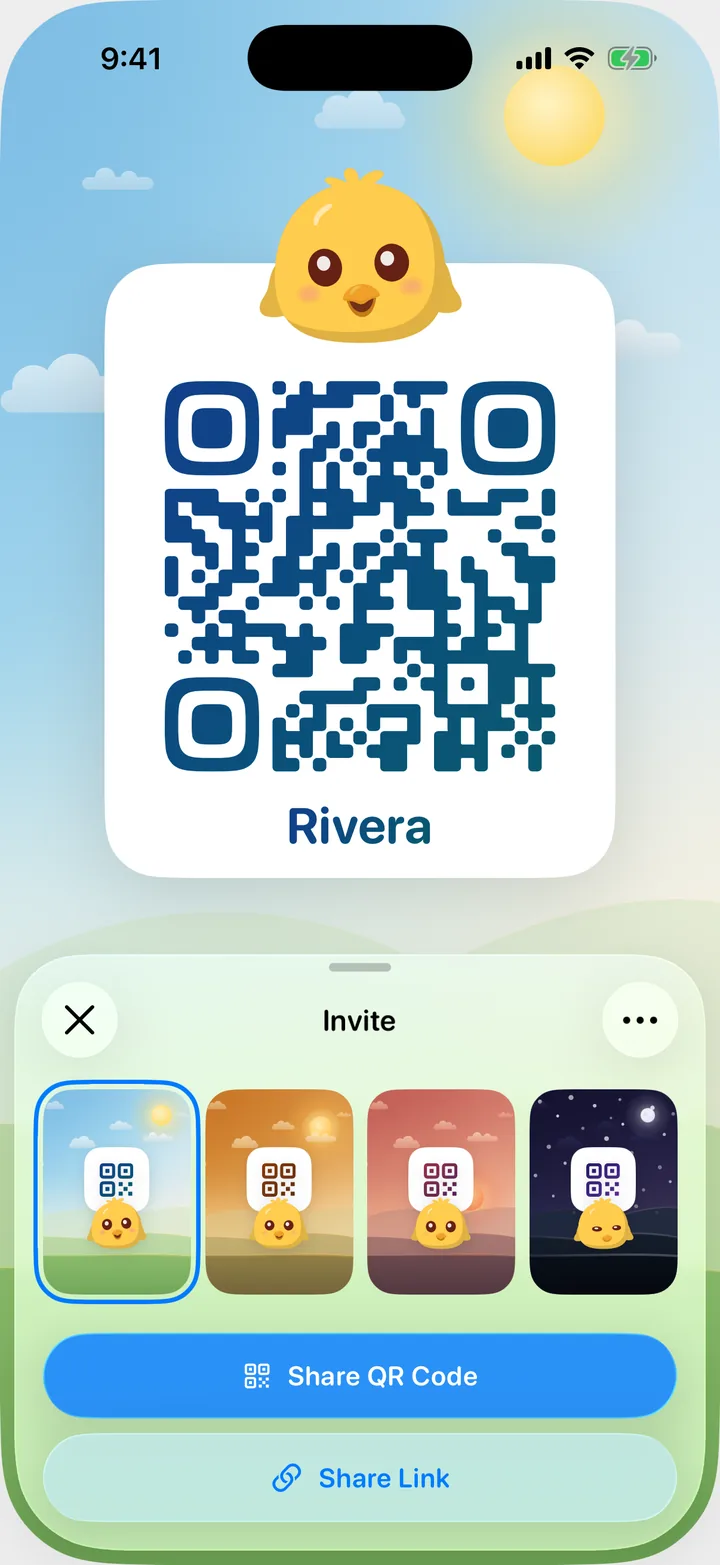
If they are next to you, you can skip the message: they point their iPhone camera at the QR code on your screen, and the camera opens the invite. Share QR Code sends the code as a picture instead.
You can also start from More, Members: tap Invite to family at the end of the list.
What happens next
They install Cami and tap your link, which opens straight into your family. Or they open Cami, tap Scan Family Code, and scan your QR code or type the six characters at the end of the link. The steps on their side are in Join your family on Cami.
Once they join, they see your children and every entry from the very first one, and what they log shows up on your phone as it happens.
Stop an invite from working
The family’s owner can close the door from the Invite screen. Tap Invite options , the button at the top right, and choose:
- Turn Off Invites: nobody can join until you choose Turn On Invites. The same link and code work again when you do.
- New Invite Link…: the current link and code stop working at once. Anyone who has not joined yet needs the new one.
Other members see only Copy Link in that menu. To remove someone who already joined, see Members, roles and the owner.
Troubleshooting
The QR code won't scan
Hold the phone so the whole code fits in the camera, a hand’s length away. If their camera still does not react, they can type the code instead: in Cami, Scan Family Code, then Enter the code manually.
They see “We don't know that code”
Check the six characters against your invite. If the owner made a new invite link, the old code no longer works, so send the new one. More fixes are in Invite code not working.
The link opened the App Store, not Cami
That happens when Cami is not installed yet. After they install it, they open the same link again and Cami fills in the code.

Still need help?
Write to us and a person reads it, usually within a day. From the app, Send Feedback attaches the details that help us fix it.
In Cami: More › Settings › Send Feedback