
Join your family on Cami
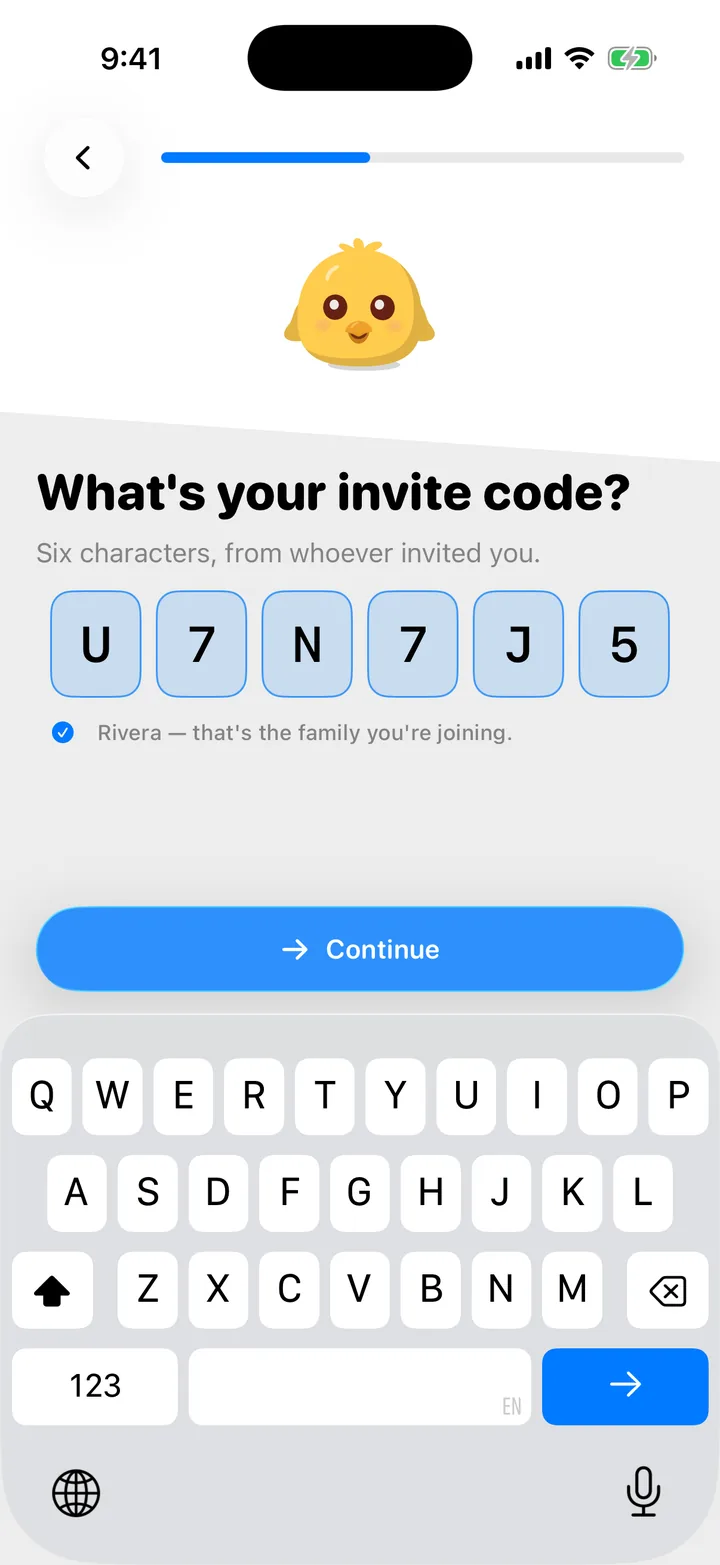
Scan the family's QR code, open their invite link, or type the six-character code. You see everything they logged, from the very first entry.
On this page
Before you start
- Ask someone in the family to open the invite on their phone. They find it in More, Invite. See Invite your family.
- Joining needs a Cami account. If you don’t have one yet, Cami asks you to create one before you join.
Join from a new Cami
- Install Cami and open it.
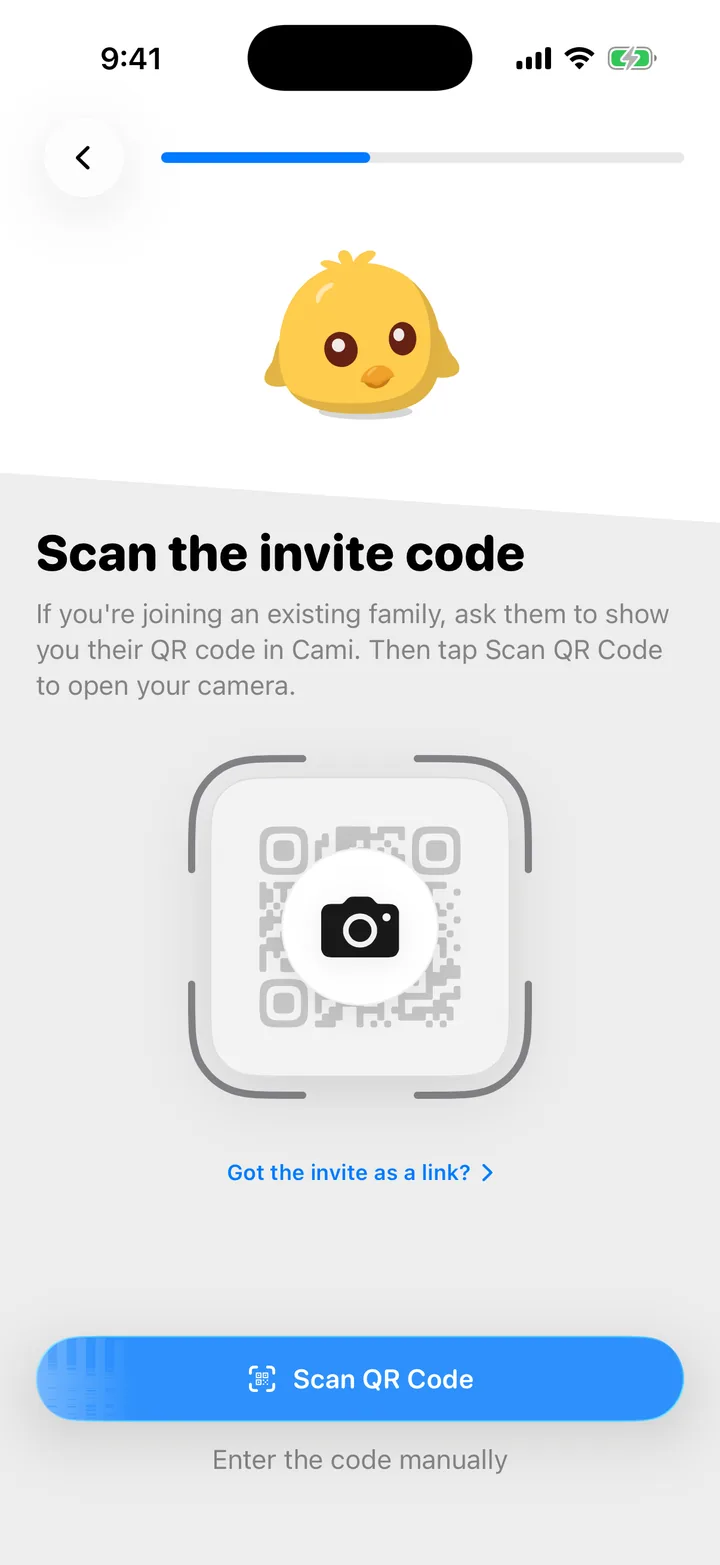
- Tap Scan Family Code. Or tap Get Started, then I’m joining a family.
- Tap Scan QR Code and point the camera at the QR code on their phone. To type the code instead, tap Enter the code manually.
- Check the family’s name, then tap Continue.
- Pick your role, then sign in or create your account.
Join with a link
If someone sent you the invite as a link, open it on your iPhone. It looks like
camibaby.com/invite/ followed by six characters.
- Cami is installed: Cami opens with the family’s name. Tap the button that names the family, for example Join Rivera.
- Cami is not installed yet: the link opens a page with a button to get Cami. After you install it, open the same link again. Cami fills in the code for you.
You can also scan the QR code with the iPhone Camera app. It opens the same invite.
Join a second family
You can be in more than one family, for example your own and your sister’s. Joining does not take you out of the family you are in.
- Open More, More Options.
- Tap Switch family, then Join a Family.
- Scan the QR code, or type the code and tap Join Family.
In Cami 1.2: open More › Manage Family and tap Join Another Family.
Cami switches to the family you joined. To go back, tap your child’s name at the top of Home and pick a child from the other family, or open More, More Options, Switch family.
What happens to what you already logged
Nothing moves and nothing is deleted. Each family keeps its own log:
- Your own family, and everything in it, stays as it is. You are now in both.
- The family you join shows its own history, not yours.
If you started logging your baby on your own before your partner invited you, you can bring that history into the shared family.
Troubleshooting
It says the code is wrong, or the invites are off
The camera doesn't open
Cami needs camera access to scan. Open the iOS Settings app, tap Apps, then Cami, and turn on Camera. Or type the code instead.
It says I'm already in this family
You joined before. Open Cami and pick the family’s child from the menu at the top of Home.

Still need help?
Write to us and a person reads it, usually within a day. From the app, Send Feedback attaches the details that help us fix it.
In Cami: More › Settings › Send Feedback