
Use the Timeline to see any day, search and filter
The Timeline shows one day at a time. Swipe to change days, tap the calendar to jump to a date, and tap Entries for a list you can search and filter.
Each entry is a block on the day’s clock. Tap one to see or change it.
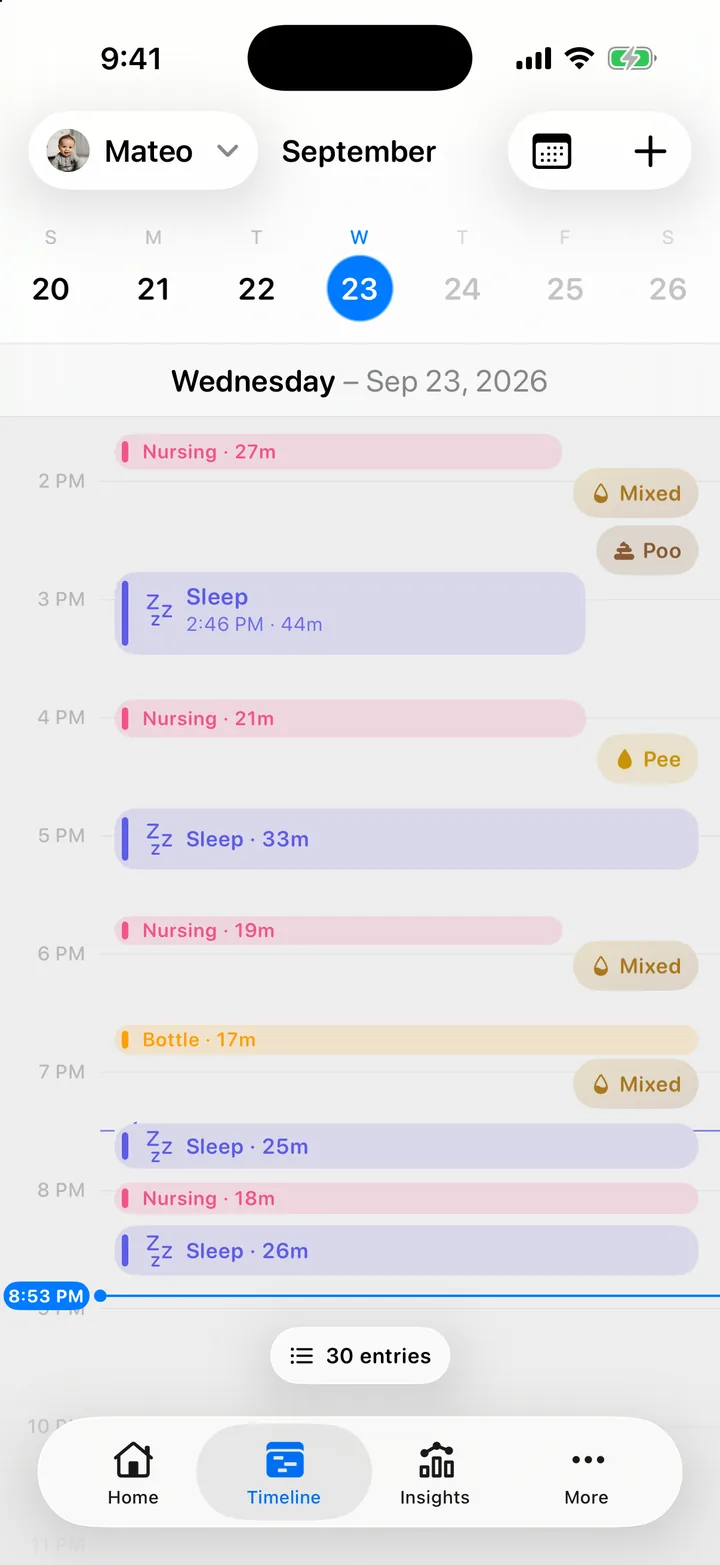
Move between days
- Swipe the day left or right, or tap a day in the week strip at the top.
- Tap the calendar button (Jump to date) at the top right and pick a date.
- Pinch the day to zoom the hours in or out.
See who logged an entry
Tap any block. The sheet shows the times, the details, the note and Logged by. From there you can edit, reopen or delete it; see Add a past entry, edit, reopen or delete it.
Add an entry at a time
Tap + (New entry) at the top right, or touch and hold an empty spot on the day. Cami opens New Entry at that time. Pick the kind, fill in the form and save.
In Cami 1.2: the Timeline has Day, Week and List views, and no Entries list, search or filters. Week patterns move to Insights in Cami 1.3.
Troubleshooting
An entry is missing on my phone but my partner sees it
Entries sync in about a second when both phones are online. Check that your phone is online and on the same child. See An entry is missing on the other phone.
Where is the week view?
In Cami 1.3 the week is in Insights: open the Patterns card. See Insights, patterns and the growth chart.

Still need help?
Write to us and a person reads it, usually within a day. From the app, Send Feedback attaches the details that help us fix it.
In Cami: More › Settings › Send Feedback