
Add a past entry, edit, reopen or delete it
To change an entry, open it on the Timeline, tap the ••• button and choose Edit or Delete Entry. To add one you forgot, tap + on the Timeline.
On this page
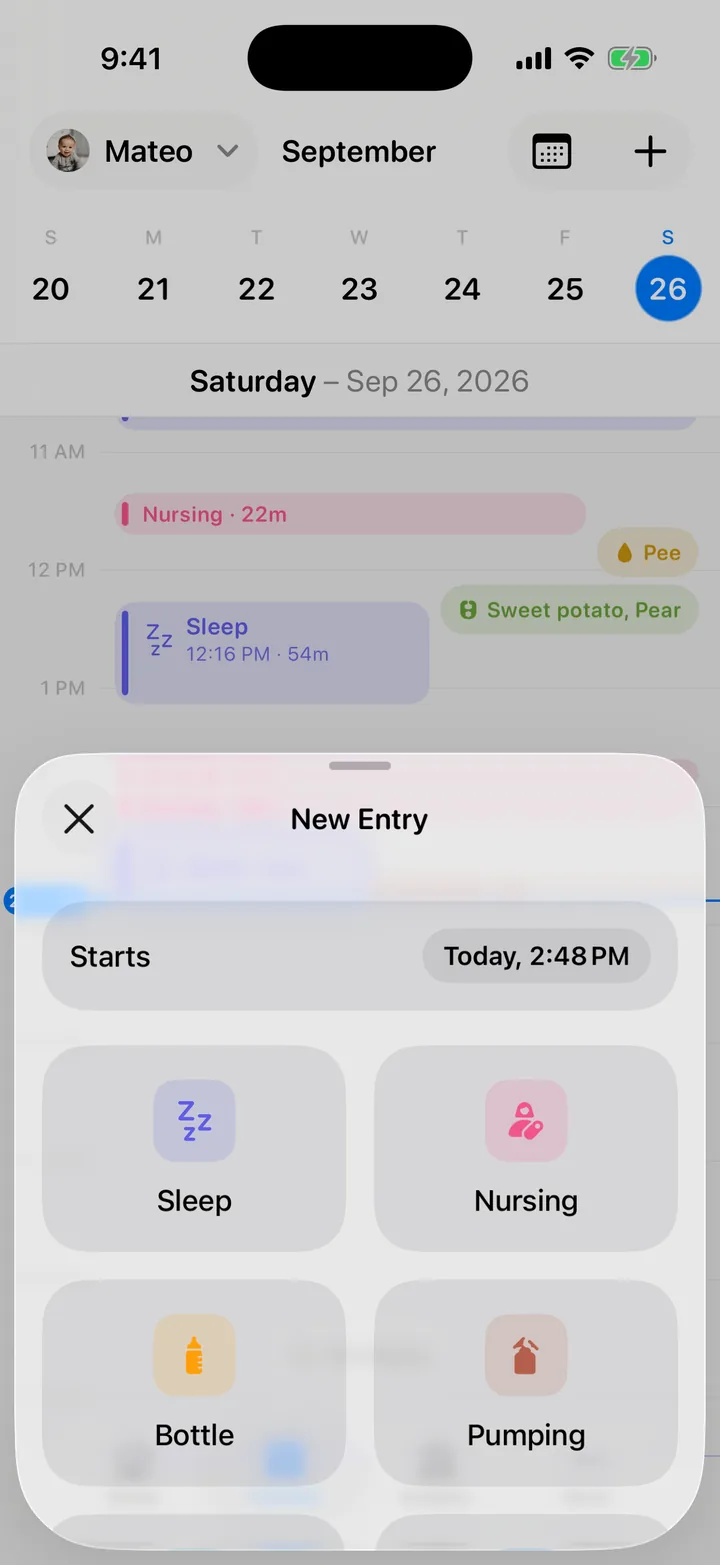
Add an entry you forgot
On any form, set the time before you save: tap Now next to When and pick the time. For sleep, nursing, bottle and pumping, tap Switch to manual entry first so you can type the start and the length.
You can also start from the Timeline:
- On the Timeline, go to the day, then tap + (New entry) at the top right. Or touch and hold an empty spot on the day at the time it happened.
- Check the time under Starts.
- Tap the kind of entry, fill in the form and save.
Edit an entry
- On the Timeline, tap the entry.
- Tap the ••• button, then Edit.
- Change the times, the details or the note.
- Tap the checkmark (Save).
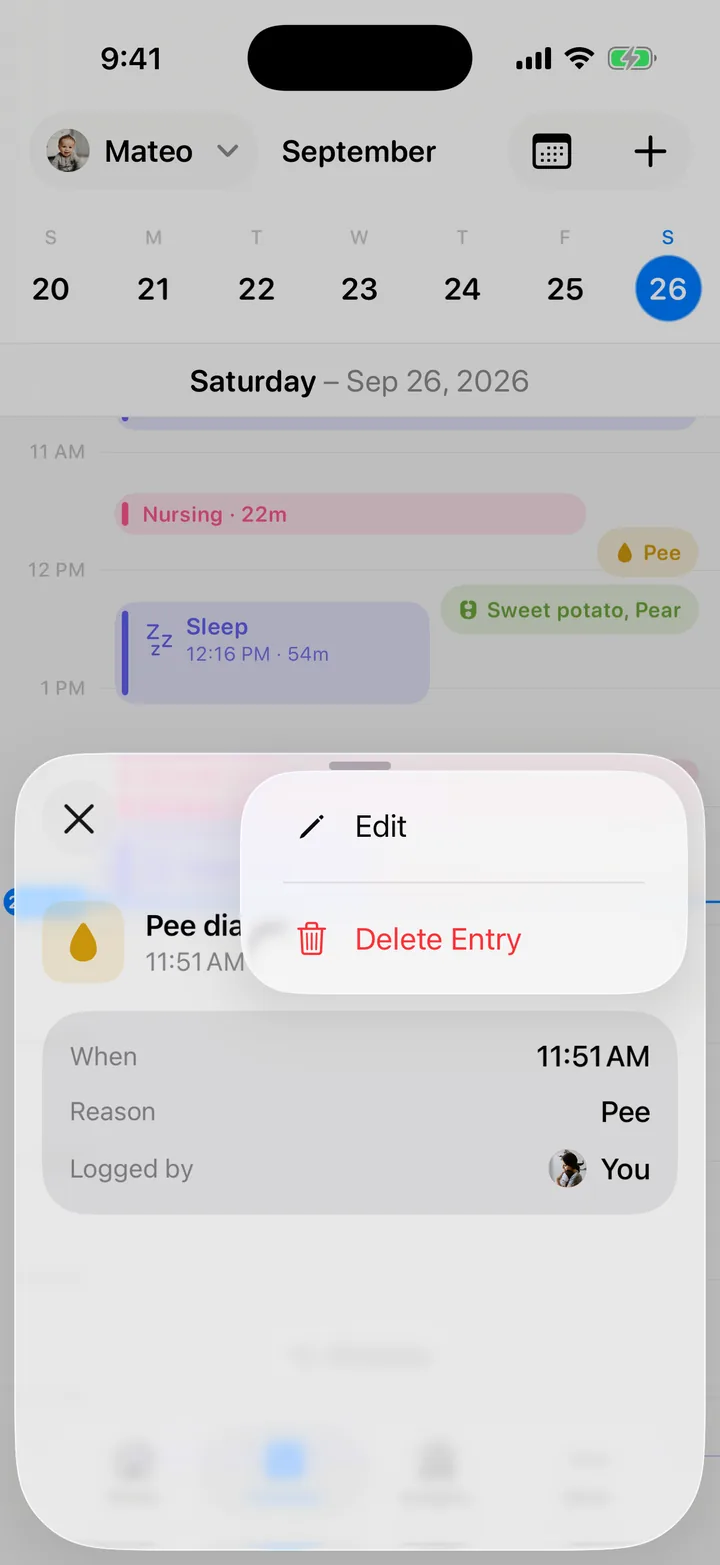
Your change reaches everyone in the family. Logged by still shows who logged it first.
Reopen a timer you saved too early
If you saved a sleep, nursing, pumping or timed bottle a little too soon, you can put it back on the timer.
- On the Timeline, tap the entry.
- Tap Reopen at the top of the sheet.
- Tap Reopen again to confirm. The session is running again for everyone, and you can resume, adjust or save it from its form.
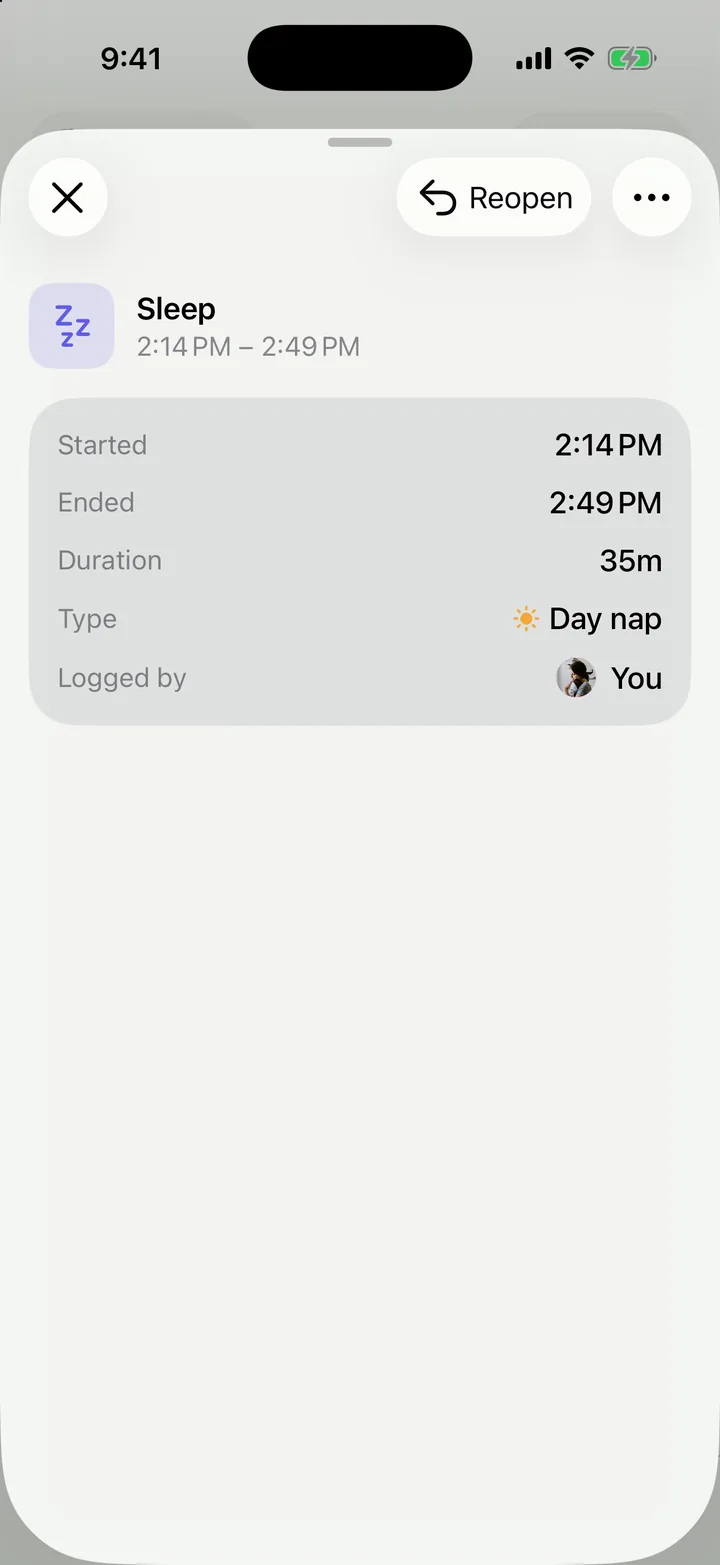
Reopen shows for 15 minutes after you save, and only while no other session of that kind is running.
Delete an entry
- On the Timeline, tap the entry.
- Tap the ••• button, then Delete Entry.
- Tap Delete to confirm.
A deleted entry is removed for everyone in the family.
Troubleshooting
I don't see Reopen
More than 15 minutes have passed since the save, the entry was logged by hand with no timer, or another session of the same kind is running. Edit the times instead.
Cami says the session changed on another device
Someone else in your family changed the same session at the same moment. Check the latest times and try again.

Still need help?
Write to us and a person reads it, usually within a day. From the app, Send Feedback attaches the details that help us fix it.
In Cami: More › Settings › Send Feedback