
Create an account and sign in
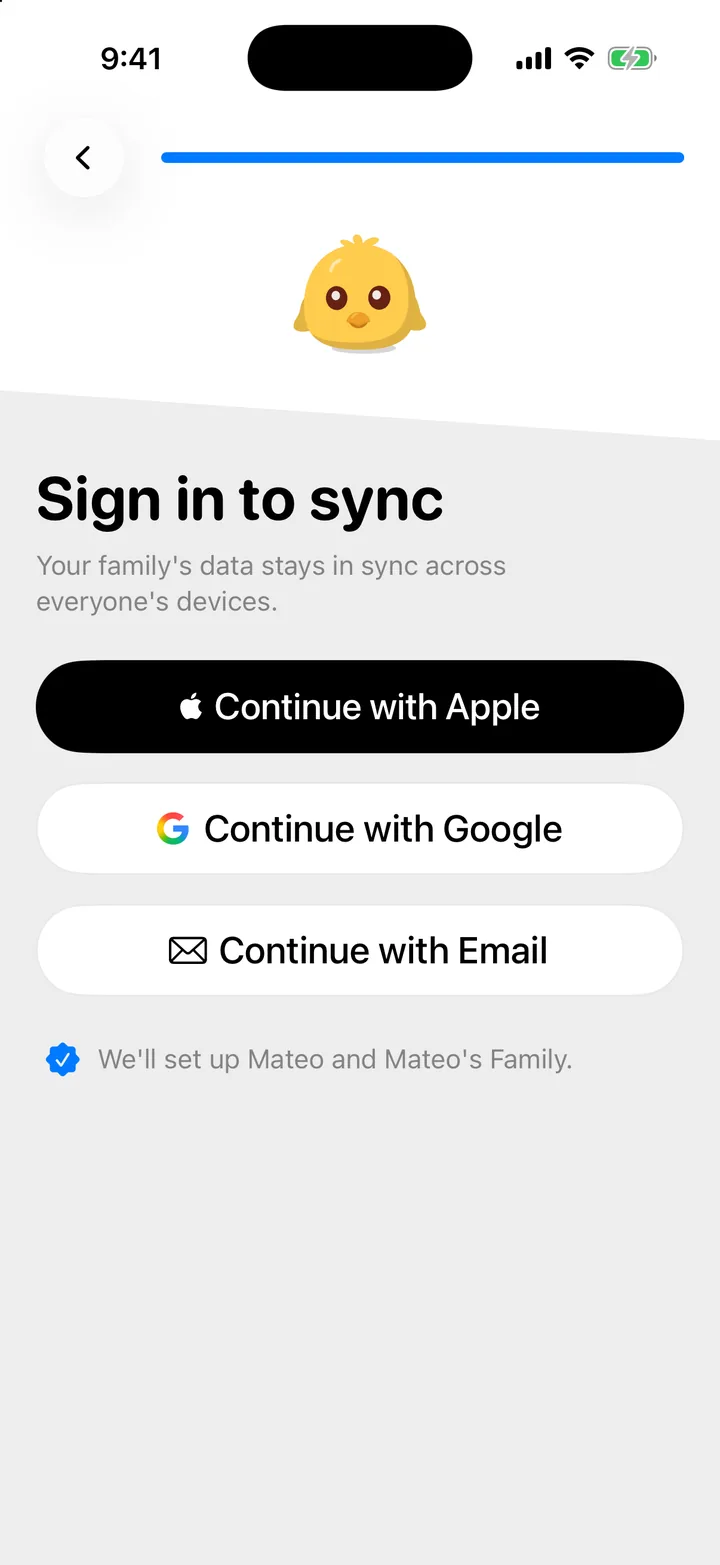
Cami asks for an account at the end of setup. Continue with Apple, Google or your email; to sign in later, use the same method you chose.
On this page
Your account is what keeps your family’s log in sync on everyone’s phone, and it keeps the log safe if you lose your iPhone.
Create your account
At the end of setup, Cami shows three buttons. Pick one:
- Continue with Apple uses your Apple Account. You can share or hide your email.
- Continue with Google uses your Google account.
- Continue with Email opens Create Account. Enter your name (optional), your email and a password of at least 8 characters, then tap Create Account.
Sign in to an account you already have
- On Cami’s first screen, tap Sign in at the bottom.
- On Sign in to Cami, tap the method you used before: Apple, Google or email.
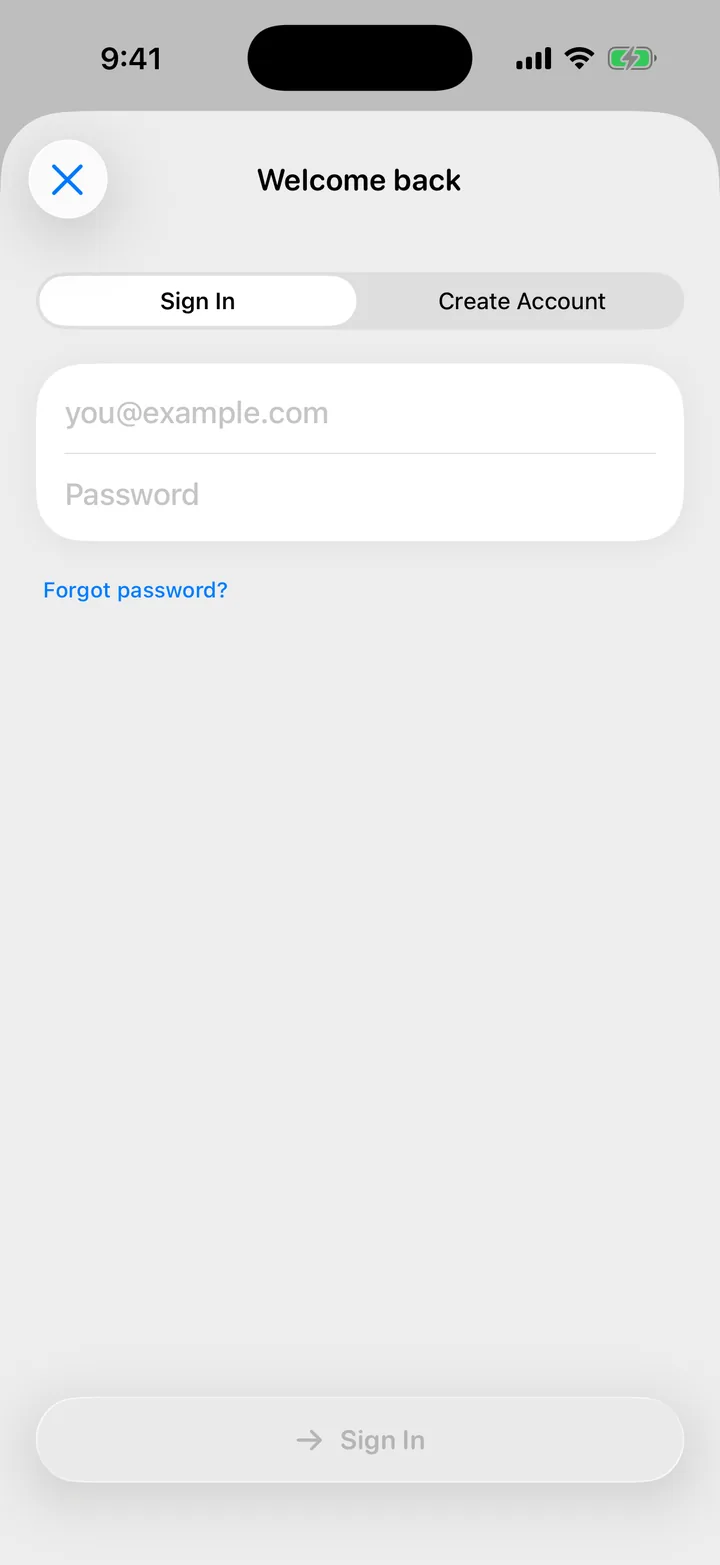
- For email, make sure Sign In is selected at the top, then enter your email and password.
Your family, your children and their history load on their own.
Forgot your password
- Tap Continue with Email, then select Sign In.
- Tap Forgot password?.
- Enter the email you signed up with and tap Send Code.
- Type the 6-digit code from the email. It is good for 15 minutes.
- Enter a new password and tap Set New Password.
Setting a new password signs you out on every other device. Sign in there again with the new password.
Change your password
In Cami 1.2: log out, then use Forgot password? on the sign-in screen to set a new one.
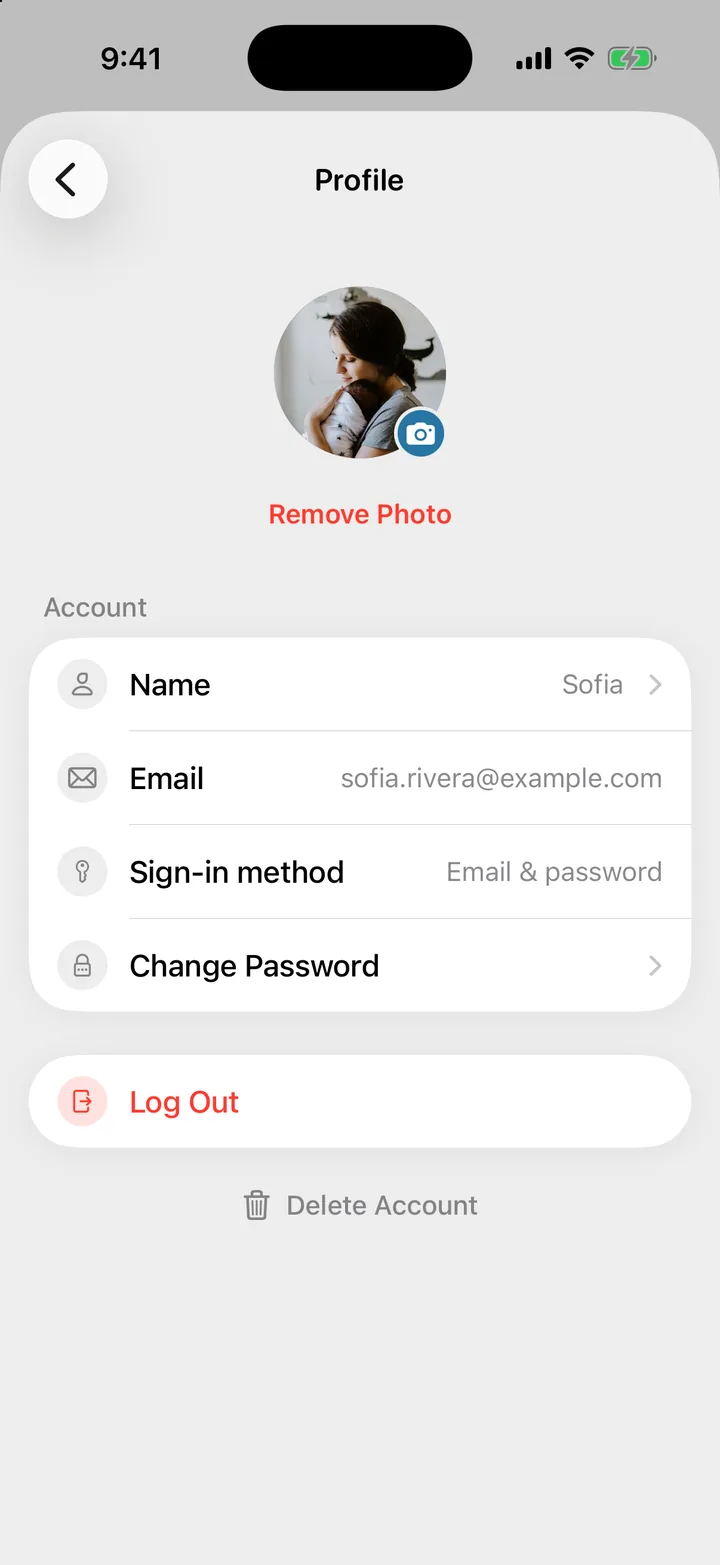
- Open More, Settings and tap your name at the top.
- Tap Change Password.
- Enter your current password and a new one, then tap the checkmark.
Your other devices stay signed in. Change Password only shows for accounts that sign in with an email and password.
Check how you sign in
Open More, Settings and tap your name. Sign-in method shows Apple, Google or Email & password. If you chose to hide your email with Apple, Email reads Hidden by Apple.
It says an account with this email already exists
You already made an account with this email. Select Sign In instead of Create Account, and use Forgot password? if you need to.
It says my email already has an account through another sign-in method
You signed up with Apple or Google the first time. Go back and tap that button instead of Continue with Email.
I hid my email with Apple. How do I sign in on another iPhone?
Tap Continue with Apple and use the same Apple Account. You don’t need the hidden address.
The reset code never arrived
Check your spam folder and that the address is the one you signed up with. A code is only sent to accounts that have a Cami password. On the code screen, tap Send a new code to try again.
It says I'm already set up
Your account already has a family. Cami offers to add the baby you just set up to that family. You can also choose Create a new family to keep them apart, or Just sign in to skip what you just set up and open the family you already have.
Too many attempts
Cami pauses sign-in after several wrong tries. Wait a few minutes, then try again.

Still need help?
Write to us and a person reads it, usually within a day. From the app, Send Feedback attaches the details that help us fix it.
In Cami: More › Settings › Send Feedback