Use Cami before your baby is born
Choose My baby is on the way and enter your due date. Home counts down to it, times contractions, and lets you record the birth when your baby arrives.

Most of Cami is for the days after the birth. Before it, Home shows the countdown, the contraction timer and your family.
Set up Cami while you’re expecting
- Open Cami, tap Get Started and choose My baby is on the way. A short note explains what Cami offers before the birth. Tap Continue.
- Pick your role.
- On When are you due?, enter your due date.
- On What will you call them?, enter a name. A nickname is fine; you can change it later.
- Finish setup and create your account, as in Set up Cami for your baby.
Already use Cami for an older child? Add the new baby from the child’s name at the top of Home: tap it, choose Add a Baby, then pick Expecting.
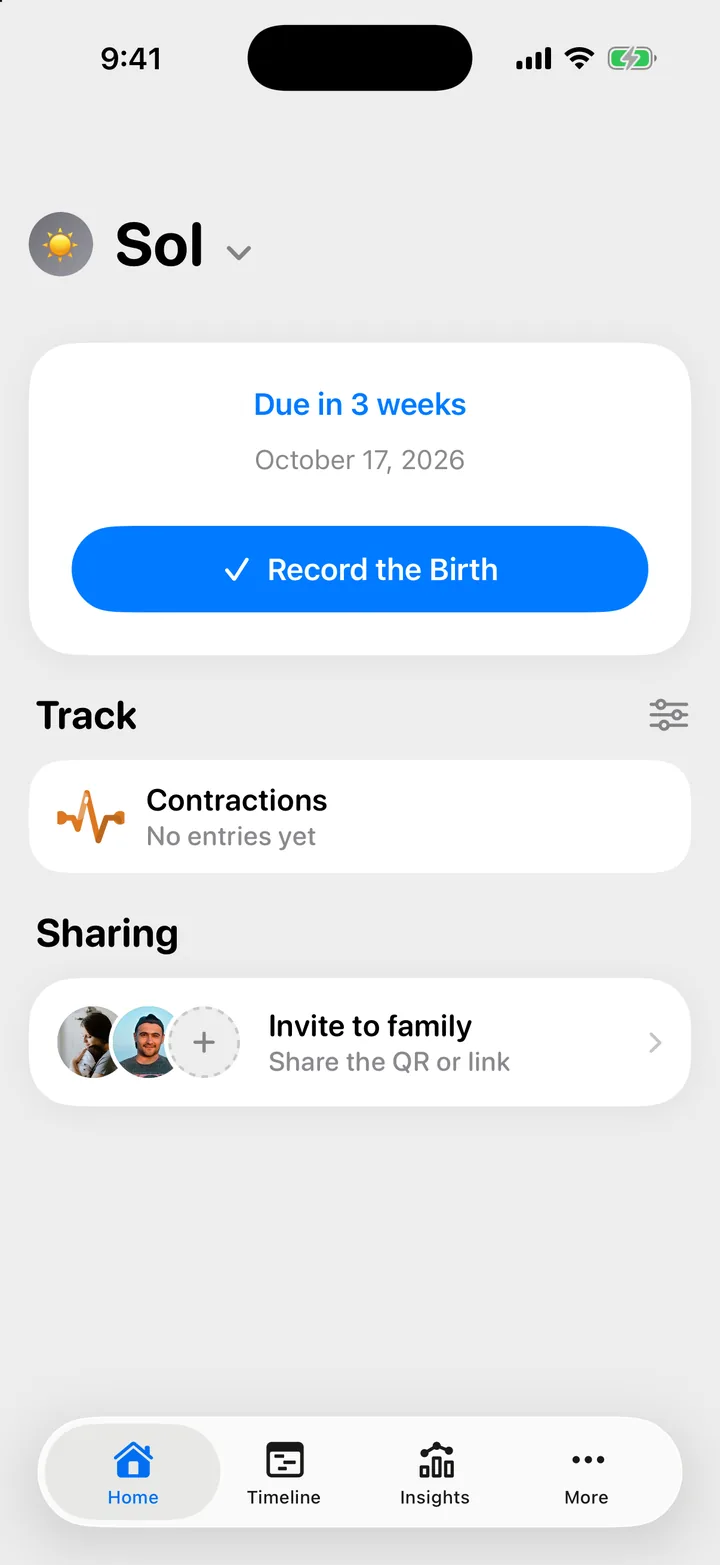
Time contractions
- On Home, tap Contractions.
- Tap Start contraction when a contraction begins.
- Tap Stop contraction when it ends. Cami starts a rest timer until the next one.
- When you’re done, tap Finish session.
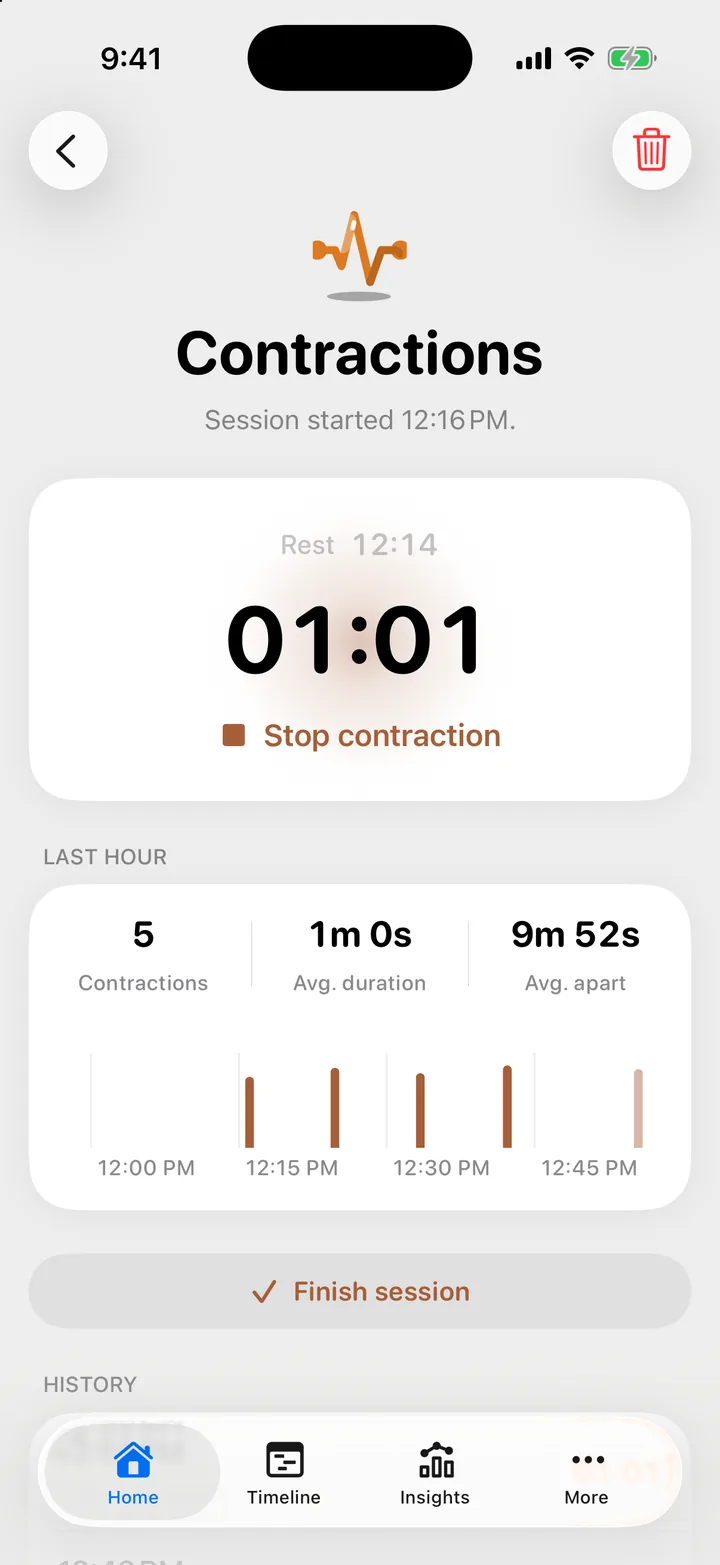
For each contraction, Cami shows when it started, how long it lasted and how far apart it was from the one before. Intervals are measured from the start of one contraction to the start of the next. Last hour sums up the past hour, and History lists every contraction in the session.
- Tap a contraction in History to fix its start time or length.
- The session is shared: anyone in your family can see it, and the timer also shows on the Lock Screen. See Timers on the Lock Screen and in the Dynamic Island.
- Finished sessions stay in the Timeline.
Record the birth
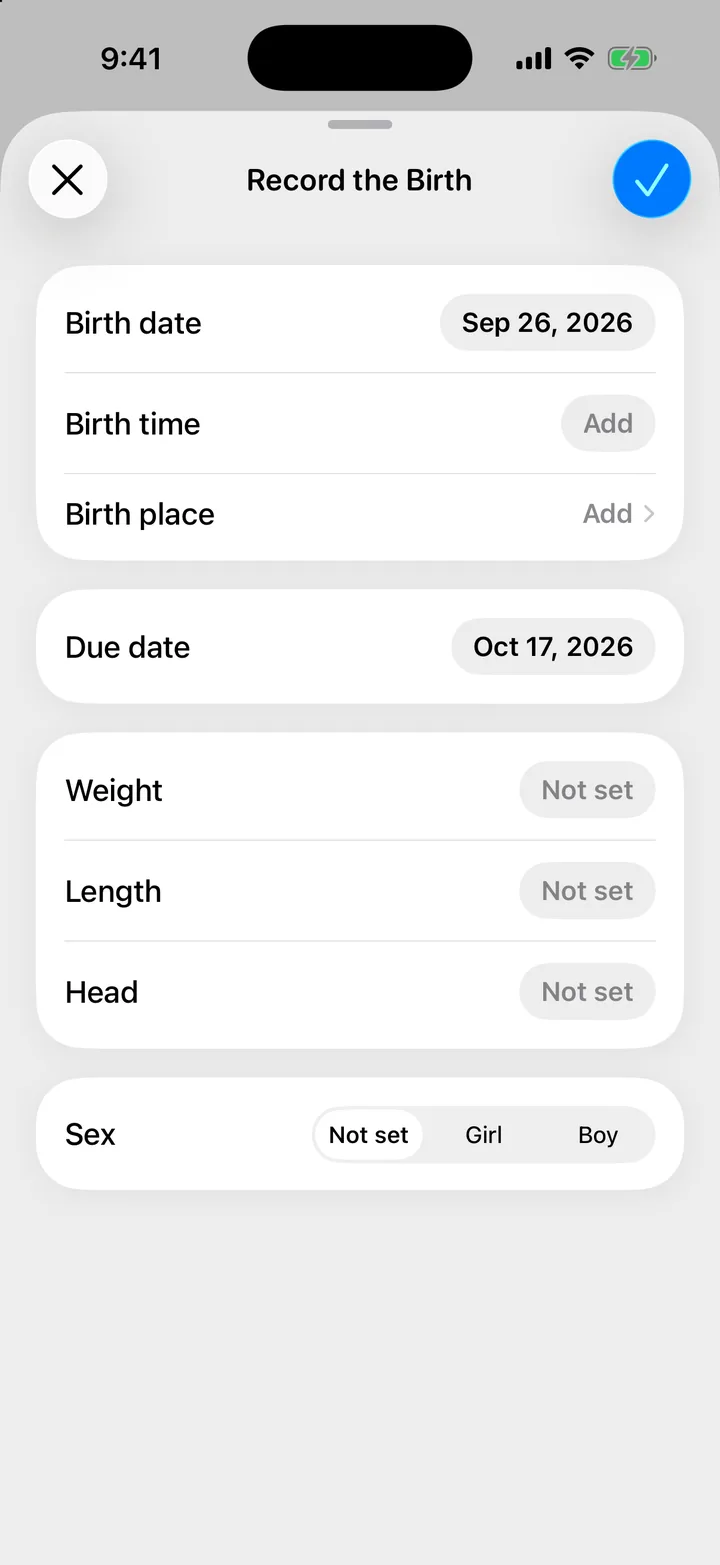
- On Home, tap Record the Birth.
- Set the birth date. Add the birth time, weight, length and other details if you have them.
- Tap the checkmark to save.
Home now shows every tracking row, ready for the first feed, diaper and nap. Your contraction sessions stay in the Timeline.
I only see Contractions on Home
That’s expected before the birth. The other rows appear after you tap Record the Birth.
The due date changed
Tap your child’s name at the top of Home, open their profile, and change the date under Birth Details.

Still need help?
Write to us and a person reads it, usually within a day. From the app, Send Feedback attaches the details that help us fix it.
In Cami: More › Settings › Send Feedback