
Delete your account, a child or all entries
Delete your account in More › Settings › your name › Delete Account. The family owner deletes a child or all of a child's entries from that child's data.
On this page
Each of these asks you to type a word and then press and hold. None of them can be undone.
Delete your account
- Open More and tap Settings in the top corner.
- Tap your name at the top.
- Tap Delete Account.
- Read what will happen to each of your families. The sheet lists them before anything is deleted.
- Type DELETE in the box.
- Press and hold the delete button until it fills. If you let go early, nothing is deleted.
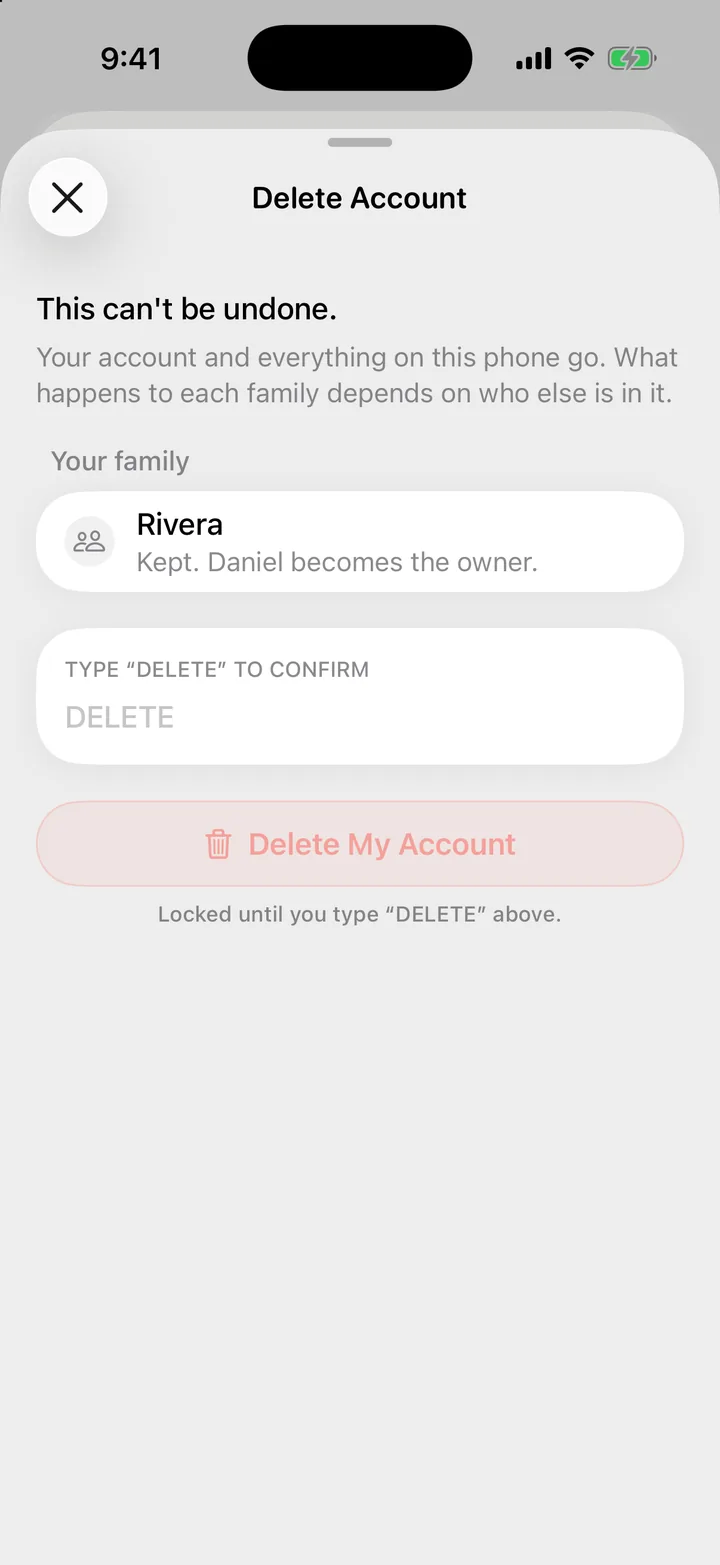
Your account, your photo and everything Cami holds on that iPhone are removed at once. What happens to each family depends on who else is in it:
| Your family | What happens |
|---|---|
| You are the only member | The family is deleted with you: its children and all of their history |
| You are the owner, and others are in it | The family is kept. The member who has been in it longest becomes the owner |
| You are a member, not the owner | The family is kept. You leave it |
Entries you logged stay in any family that others still use. They are part of that family’s record of their child. They show without your name.
Delete every entry of one child
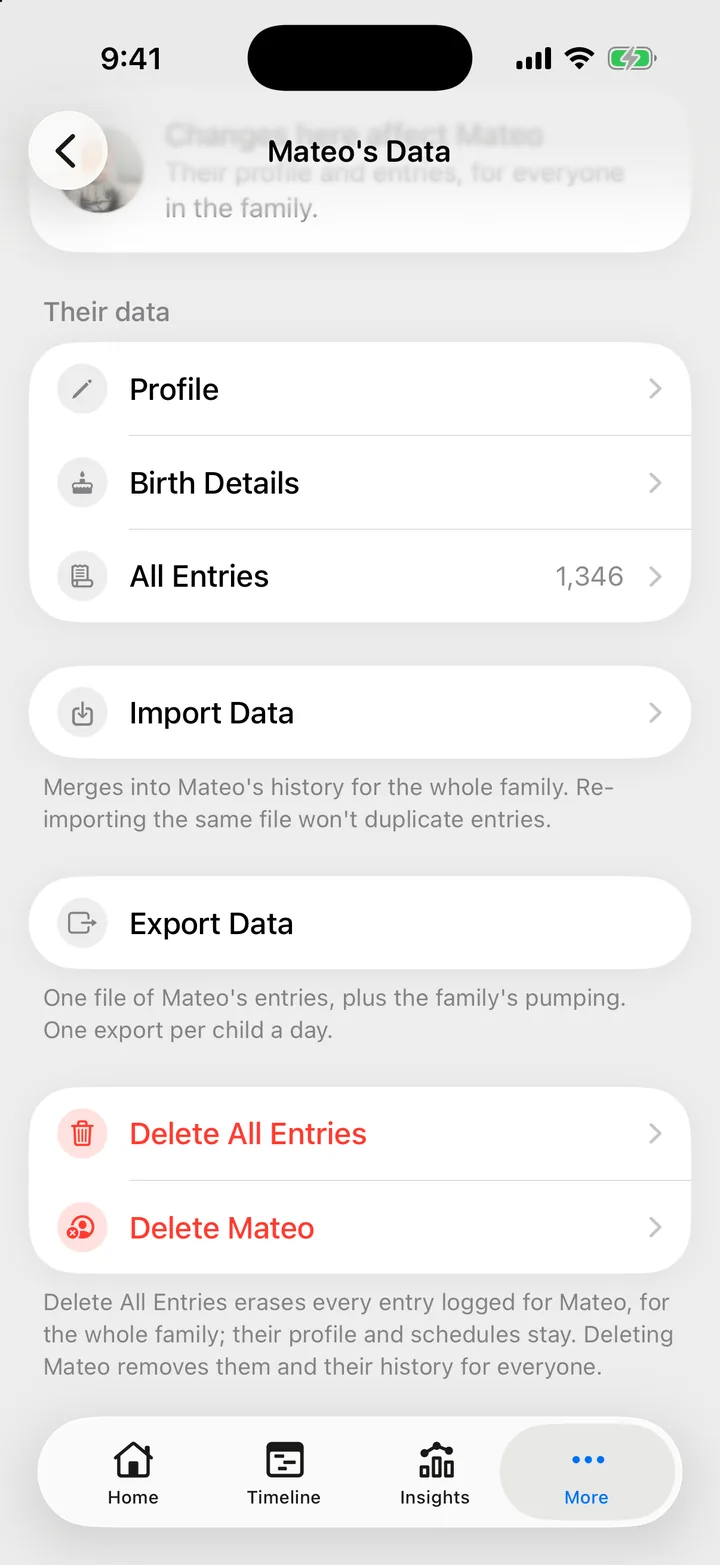
This erases every entry logged for the child, for the whole family, on every device and on Cami’s service. The child’s profile, birth details and schedules stay. Only the family owner sees this option.
- Open More, Data & Privacy and tap the child under Manage Data.
- Tap Delete All Entries.
- Type the child’s name in the box.
- Press and hold the delete button until it fills.
In Cami 1.2: open More › (your child)'s Data, then tap Delete All Entries.
Delete a child
This removes the child, their birth details, their schedules and every entry, for everyone in the family. The family, its members and its invite code stay. Only the family owner sees this option.
- Open More, Data & Privacy and tap the child under Manage Data.
- Tap Delete Mateo (the row shows your child’s name).
- Type the child’s name in the box.
- Press and hold the delete button until it fills.
In Cami 1.2: open More › Children, tap the child, then tap the delete row at the bottom of their page.
Adding a child with the same name later does not bring the history back.
Delete one entry, or the whole family
- To delete a single entry, see Edit or delete an entry.
- To delete the whole family, or to leave it, see Remove a member, leave or delete a family.
What stays after a deletion
- Backups on Cami’s service. Daily copies of a family’s log are kept for 90 days, and all of them are deleted when the family is deleted. Cami’s hosting provider can hold earlier versions for up to 30 days.
- Feedback you sent and email you wrote to Cami are not deleted with your account. To have them deleted, write to hello@camibaby.com.
- Files you saved yourself, such as an exported CSV or a copy in your iCloud Drive, stay until you delete them.
The privacy policy has the full detail.
Troubleshooting
I don't see Delete All Entries or the delete-child row
Only the family owner sees them. Ask the owner, or ask them to transfer the family to you. See Members, roles and the owner.
The delete button stays locked
Type the word shown above the box exactly: DELETE for your account, or the child’s name for a child. Capital letters and accents do not matter.

Still need help?
Write to us and a person reads it, usually within a day. From the app, Send Feedback attaches the details that help us fix it.
In Cami: More › Settings › Send Feedback