
Use Cami on a new phone, and what logging out does
Your log belongs to your account, not your phone. Install Cami on the new iPhone, tap Sign in and use the same method as before.
Move to a new iPhone
- Install Cami from the App Store on the new iPhone and open it.
- Tap Sign in at the bottom of the first screen.
- On Sign in to Cami, choose the method you used before: Apple, Google or email.
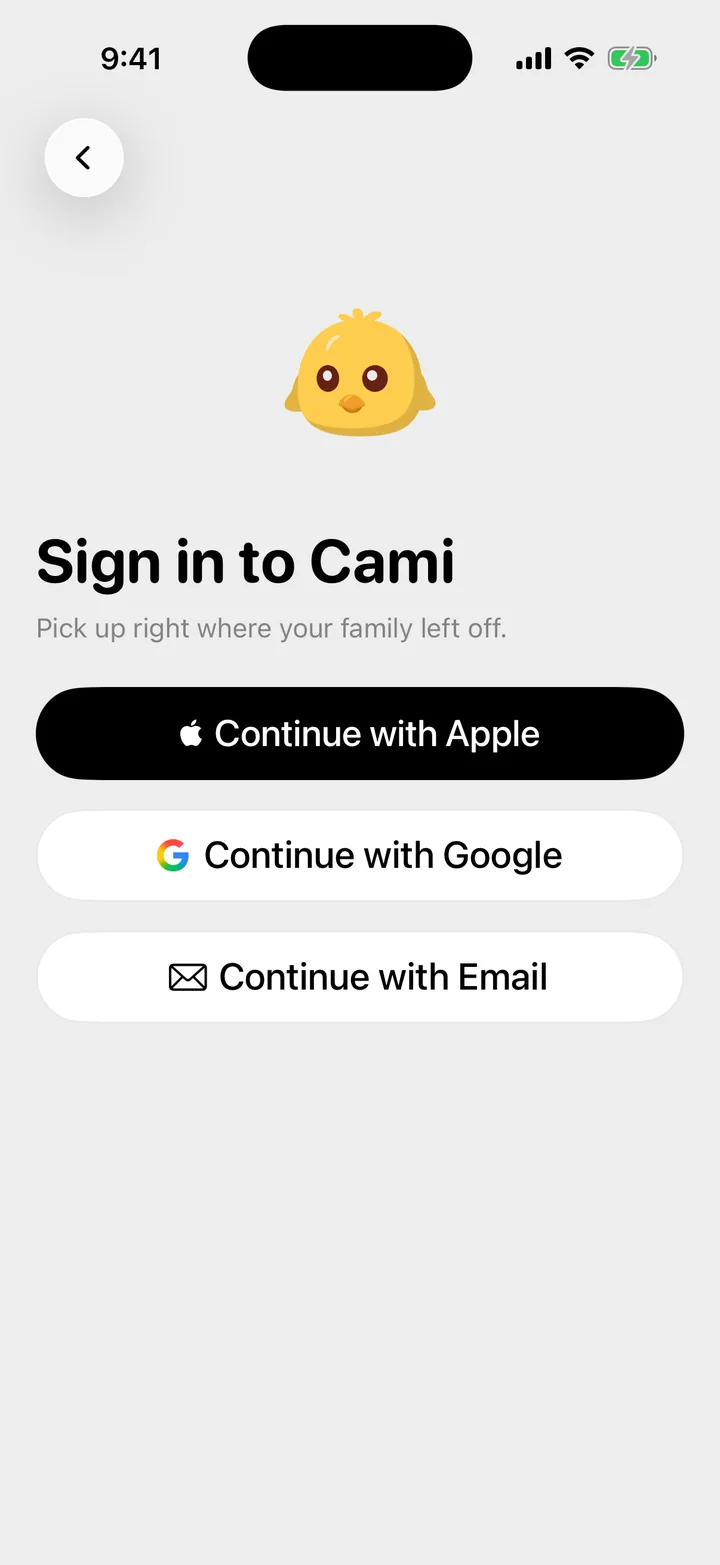
Not sure which method you used? On the old iPhone, open More, Settings and tap your name. Sign-in method shows it.
A few choices belong to each iPhone, not to your account. Set them again on the new phone: Appearance, Units, Live Activities, growth reminders and the pump alarm.
Log out
- Open More, Settings.
- Scroll to the bottom and tap Log Out.
- Tap Log Out again to confirm.
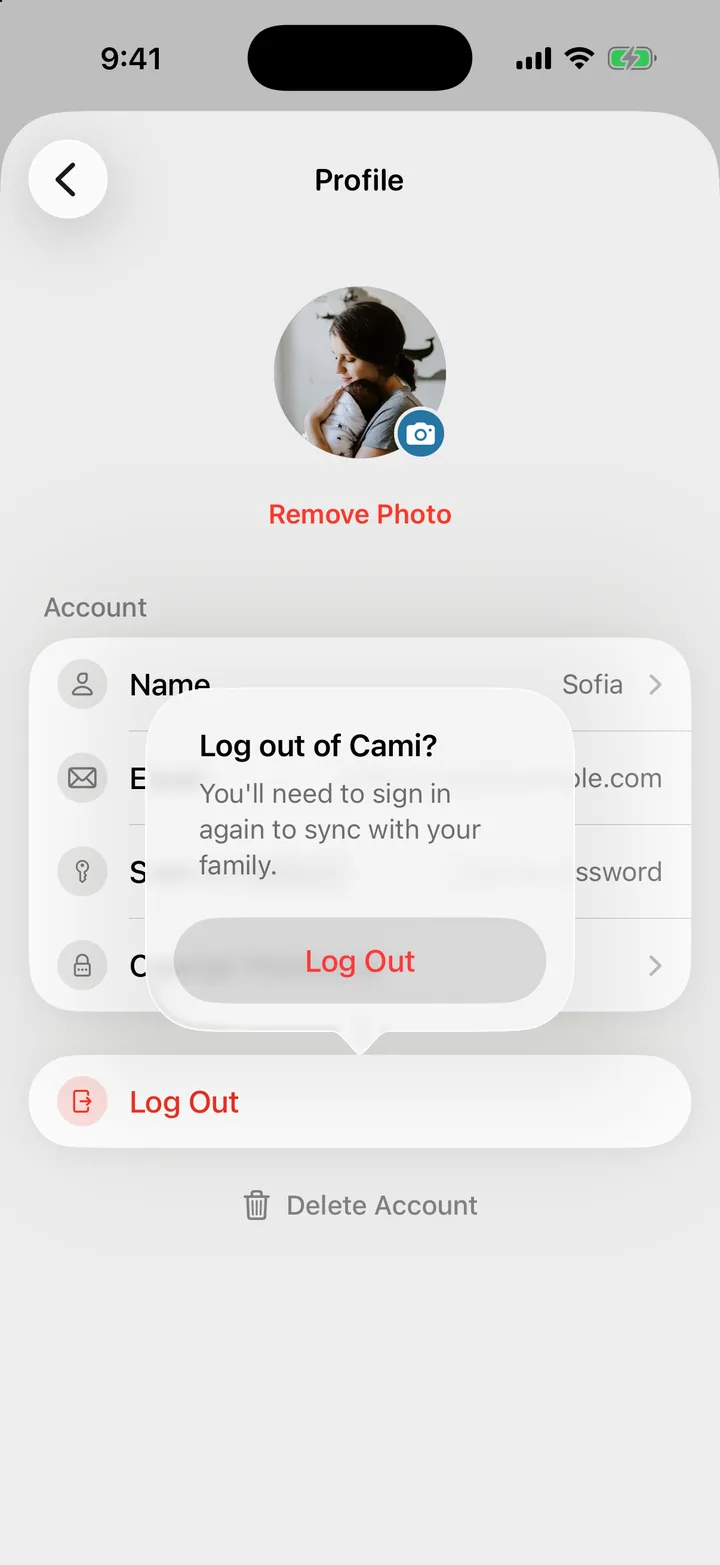
What logging out does
- This iPhone stops syncing and clears your family’s log from this phone.
- Your entries stay with your family. Everyone else keeps logging and sees them as before.
- To get everything back, sign in again with the same method.
Logging out does not delete anything. To delete your account, see Delete your account, a child or all entries.
If you lose your iPhone
Your log is safe on your account. Sign in on another iPhone. If your account has a password, you can also sign the lost phone out: set a new password with Forgot password? on the sign-in screen, which signs you out on every other device.
I signed in and my family is empty
You may have signed in with a different method and made a new account. Check Sign-in method and Email under More, Settings and your name. If they don’t match your old account, log out and sign in with the method you used first.
Cami asks me to update before I can log
Your version of Cami is too old to sync. Tap Update Cami, or update it from the App Store, then open it again.

Still need help?
Write to us and a person reads it, usually within a day. From the app, Send Feedback attaches the details that help us fix it.
In Cami: More › Settings › Send Feedback