
Import your Nara Baby history
Export your child's data from Nara Baby to Files, then in Cami open your child's data, tap Import Data › Import from Nara Baby and choose the file.
On this page
Before you start
- Add your child in Cami first. Each import goes into one child’s history.
- Save Nara Baby’s file to the Files app on the iPhone where you use Cami.
1. Get the file from Nara Baby
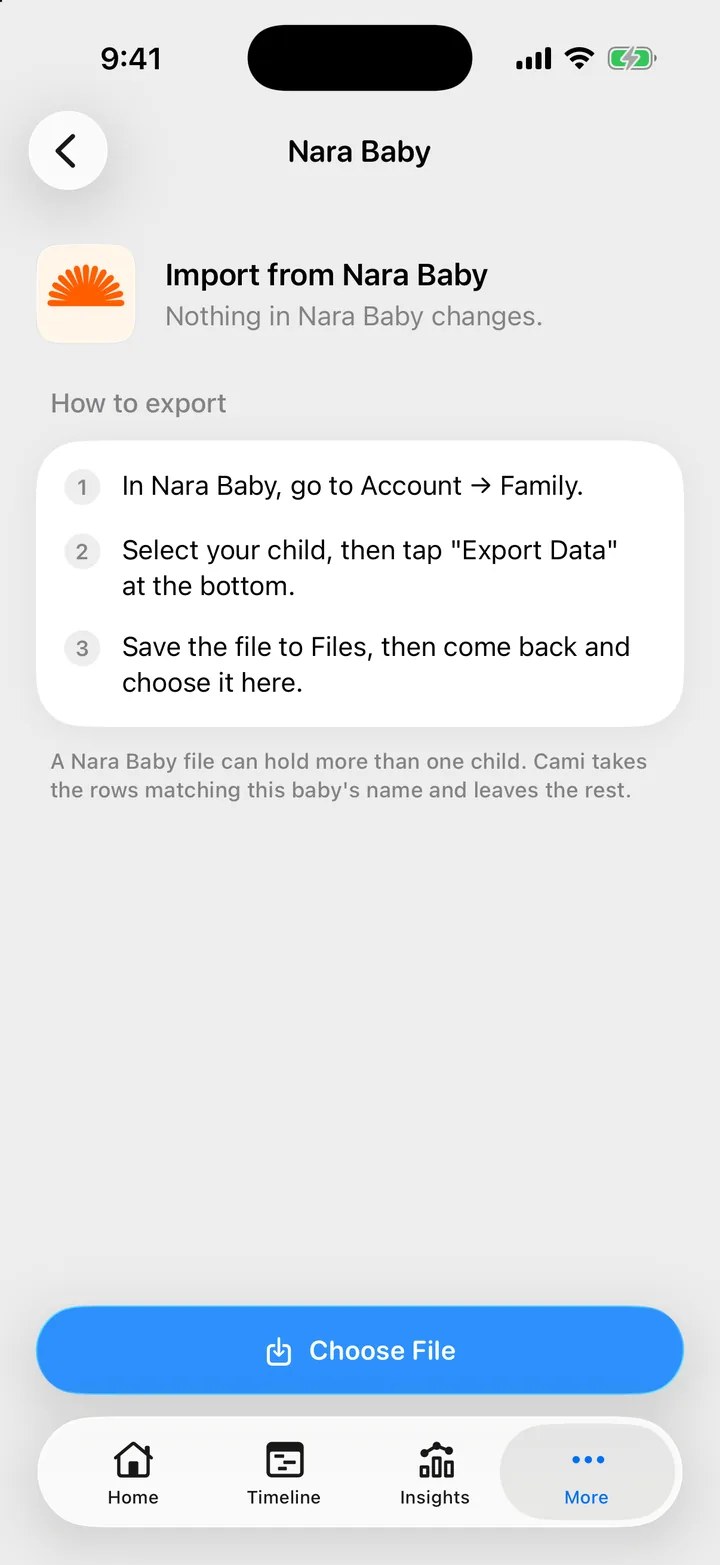
These are the steps Cami shows on its Nara Baby import screen:
- In Nara Baby, go to Account › Family.
- Select your child, then tap Export Data at the bottom.
- Save the file to Files.
Nara Baby’s own FAQ describes another way to the same button: on the main Activity screen, tap the avatar next to your child’s name, then Export Data (Nara Baby app FAQs, checked 25 September 2026).
2. Import the file into Cami
- Open More, Data & Privacy and tap your child under Manage Data.
- Tap Import Data.
- Under Other apps, tap Import from Nara Baby.
- Tap Choose File and pick the file you saved.
- Read the summary. It says how many entries came in, and which rows Cami skipped and why.
In Cami 1.2: open More › (your child)'s Data, then tap Import from Nara Baby.
You can also reach your child’s data from More, Children: tap the child, then Manage Data. If you have just installed Cami, answer Yes, I’m coming from another app during setup and choose the file on Bring your history.
What comes across
| In Nara Baby | In Cami |
|---|---|
| Sleep | Sleep, with start and end |
| Breastfeed | Nursing, with the time on each side and the side you ended on |
| Bottle feed | Bottle, with the amount and whether it was breast milk or formula. The formula name, or the split of a bottle that held both, goes in the note |
| Combo feed | Two entries at the same time: a nursing entry and a bottle entry |
| Diaper | Diaper: Pee, Poo, Mixed, or Other for a dry change. Details such as a blowout go in the note |
| Pump | Pumping, with the left, right and total amounts |
| Medical | Medicine (the dose goes in the note), a temperature reading, or both |
| Solid feed | Solids, with each food and any reaction. The meal name goes in the note |
| Vaccine | Vaccine, with its name |
| Notes | The entry’s note |
Imported entries go into your child’s history for the whole family. Everyone in your family sees them on their own phone.
What does not come across
- Any other kind of row, such as growth measurements. Cami skips it and counts it in the summary.
- Who logged each entry. Every imported entry shows you under Logged by, because you ran the import.
- A sleep with no end time. It is skipped.
A file with more than one child
A Nara Baby file can hold several children. When it does, Cami takes only the rows whose child name matches the name of the child you import into, and leaves the rest. Pumping rows, which Nara Baby does not tie to a child, always come across.
A file with only one child imports whole, whatever the child is called.
Import again without duplicates
Importing the same file twice adds nothing twice. If you edit an entry in Nara Baby and export again, the new import updates that entry in Cami instead of adding a second one.
Troubleshooting
Cami says the file doesn't look like an export from Huckleberry, Nara Baby or Cami
Choose the file exactly as Nara Baby saved it. A file you opened and saved again in a spreadsheet app can fail. Export again and import the new file. More help: The import did not work.
The summary says entries are for another child
The file holds more than one child, and those rows belong to a child with a different name. Import them into that child in Cami: open that child’s data and import the same file again.
Moving from Huckleberry instead? See Import your Huckleberry history.

Still need help?
Write to us and a person reads it, usually within a day. From the app, Send Feedback attaches the details that help us fix it.
In Cami: More › Settings › Send Feedback