
Language, dark mode and units
Cami follows your iPhone's language; change it in iPhone Settings › Apps › Cami. Dark mode is in More › Settings › Appearance, units in General.
Language
Cami is in English and Spanish (Latin America). To use a language that is different from your iPhone’s:
- Open the Settings app on your iPhone.
- Tap Apps, then Cami.
- Tap Language and choose English or Spanish.
If you don’t see Language, add the other language in Settings › General › Language & Region first.
Dark mode
- Open More, Settings, Appearance.
- Under Theme, choose System, Light or Dark. System follows your iPhone.
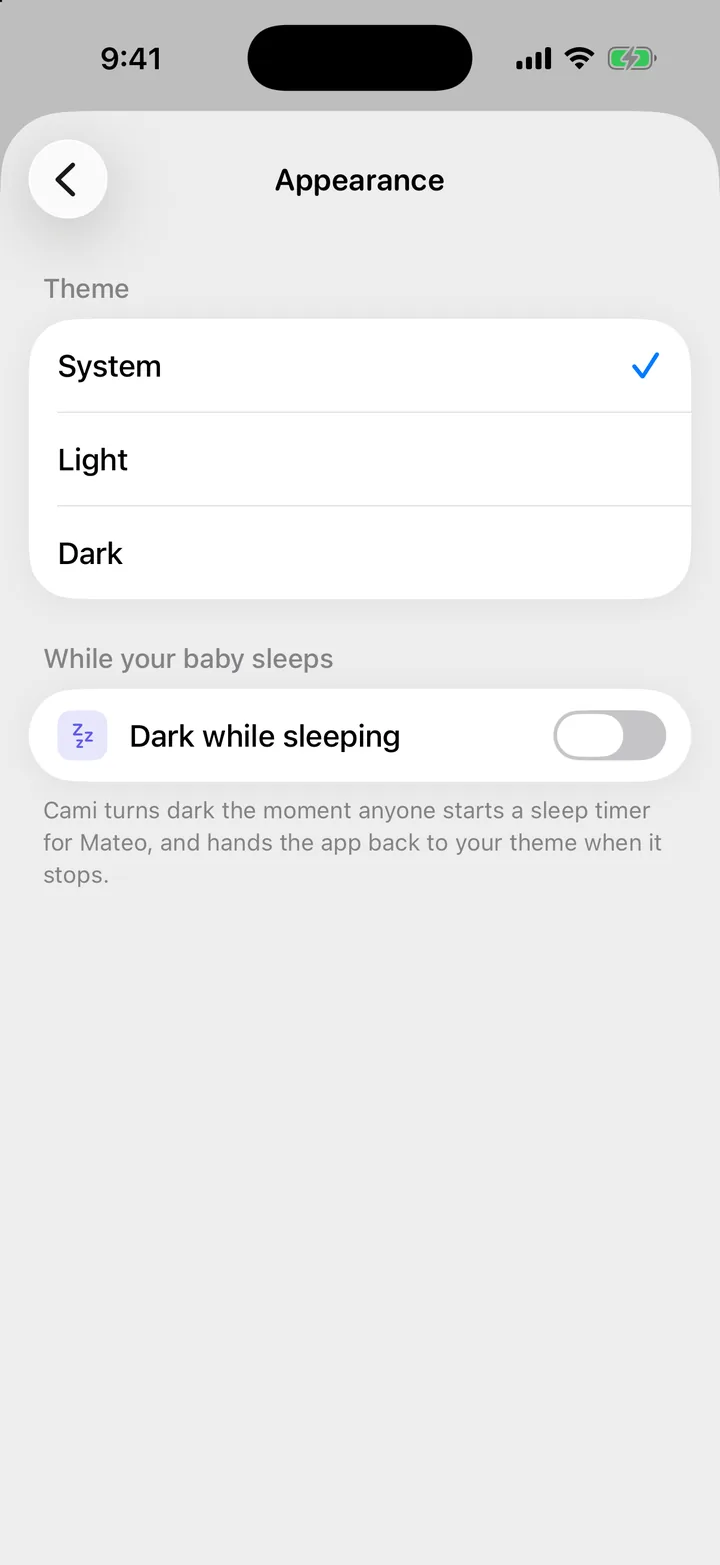
Dark while sleeping: turn on Dark while sleeping on the same screen, and Cami turns dark the moment anyone starts a sleep timer for your child. It goes back to your theme when the timer stops. It’s off until you turn it on.
Units
In Cami 1.2: Volume unit and Measurements are directly in More › Settings, under Preferences.
- Open More, Settings, General.
- Under Units, set Volume unit to Milliliters or Ounces.
- Set Measurements to Metric or US, for weight, length and head size.
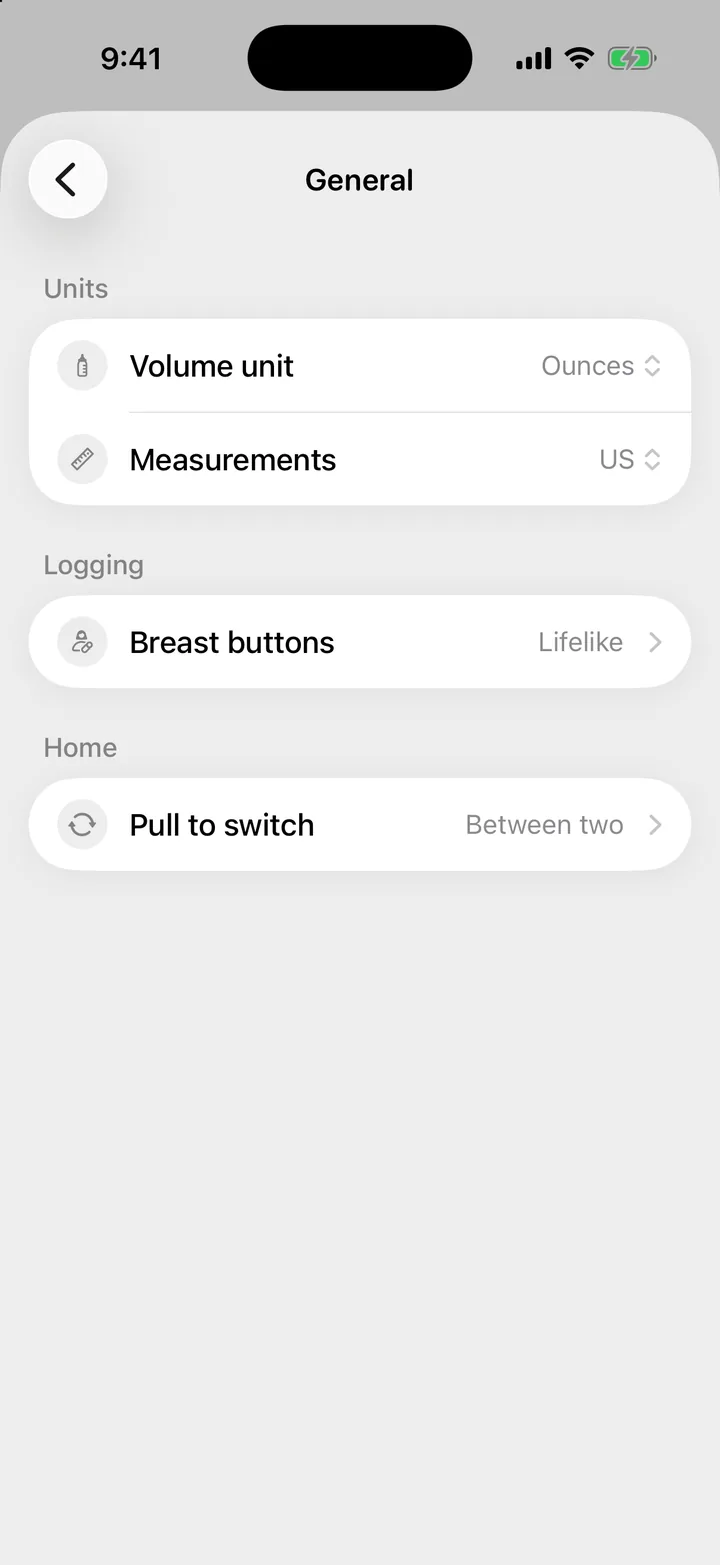
- Both start from your iPhone’s region.
- On the Bottle form, tap the unit next to the amount to switch between ml and oz. It changes the same setting.
- °C or °F is chosen on the Temperature form.
- Changing units never changes what’s saved. Your entries just show in the new unit.
Breast buttons
In Cami 1.2: Breast buttons is directly in More › Settings, under Preferences.
More, Settings, General, Breast buttons changes how the left and right buttons look and what they’re called on the Nursing and Pumping forms. It never changes which side a feed is saved on. See Time a nursing session, one side at a time.
These settings are per iPhone
Language, theme and units belong to this iPhone. Your partner can use Spanish in ounces while you use English in milliliters, and you both see the same log.

Still need help?
Write to us and a person reads it, usually within a day. From the app, Send Feedback attaches the details that help us fix it.
In Cami: More › Settings › Send Feedback