
Sleep Forecast, when the next nap is likely
Sleep Forecast reads your child's own log to show when the next nap and bedtime are likely. Tap the card under Today on Home to see the whole day.
On this page
Every child has their own rhythm. Sleep Forecast learns your child’s from the sleeps you log, and draws the naps and bedtime it expects for the day. Your child’s cues come first. If they look sleepy before the forecast says so, trust what you see.
Every time is “around” a time, with a window, never an exact minute.
Where to find it
- On Home, find the card under Today. It reads, for example, Nap in about 37m, with around 5:00 PM under it.
- Tap the card. Sleep Forecast opens with the whole day.
- Tap the i button, How Sleep Forecast works, to read how it works. Tap Close to go back to Home.
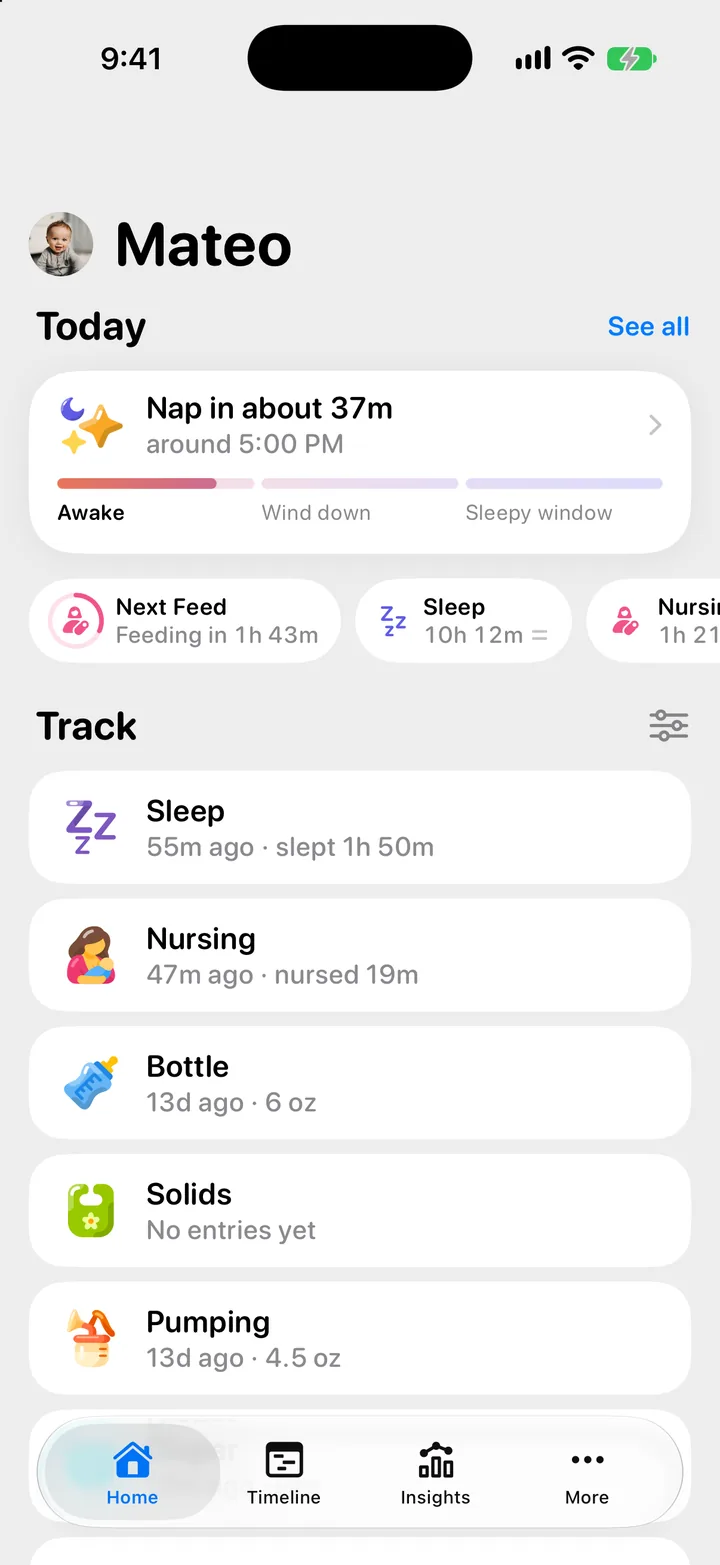
When the next nap is less than 2 hours away, the headline says how long is left and the line under it gives the time. When it is further away, the headline gives the time, for example Nap around 3:45 PM. The bar shows where your child is now:
- Awake: well before the next sleep.
- Wind down: the stretch before the sleepy window. The card says A good time to wind down.
- Sleepy window: when the next sleep most likely starts.
If the sleepy window passes and nothing is logged, Cami does not say the sleep is late. The card says Sleepy cues are the best guide now, and the forecast moves on.
While a nap is running, the card says Napping for how long so far and when your child is likely to wake. At night it says Asleep for the night and shows the morning rise.
Hide the card from Home
Touch and hold the card, or on iOS 27 swipe it to the left and tap Dismiss. Then choose:
- Hide Until the Next Sleep: the card comes back by itself once that sleep is logged, its time has passed, or the day changes.
- Hide from Home: the card stays off Home on this phone, for this child. The forecast is still in Today, on the day screen, in reminders and in the widget. To bring the card back, open More, then Sleep Forecast, and turn on Show on Home.
Read the day
The day screen puts what happened beside what was forecast.
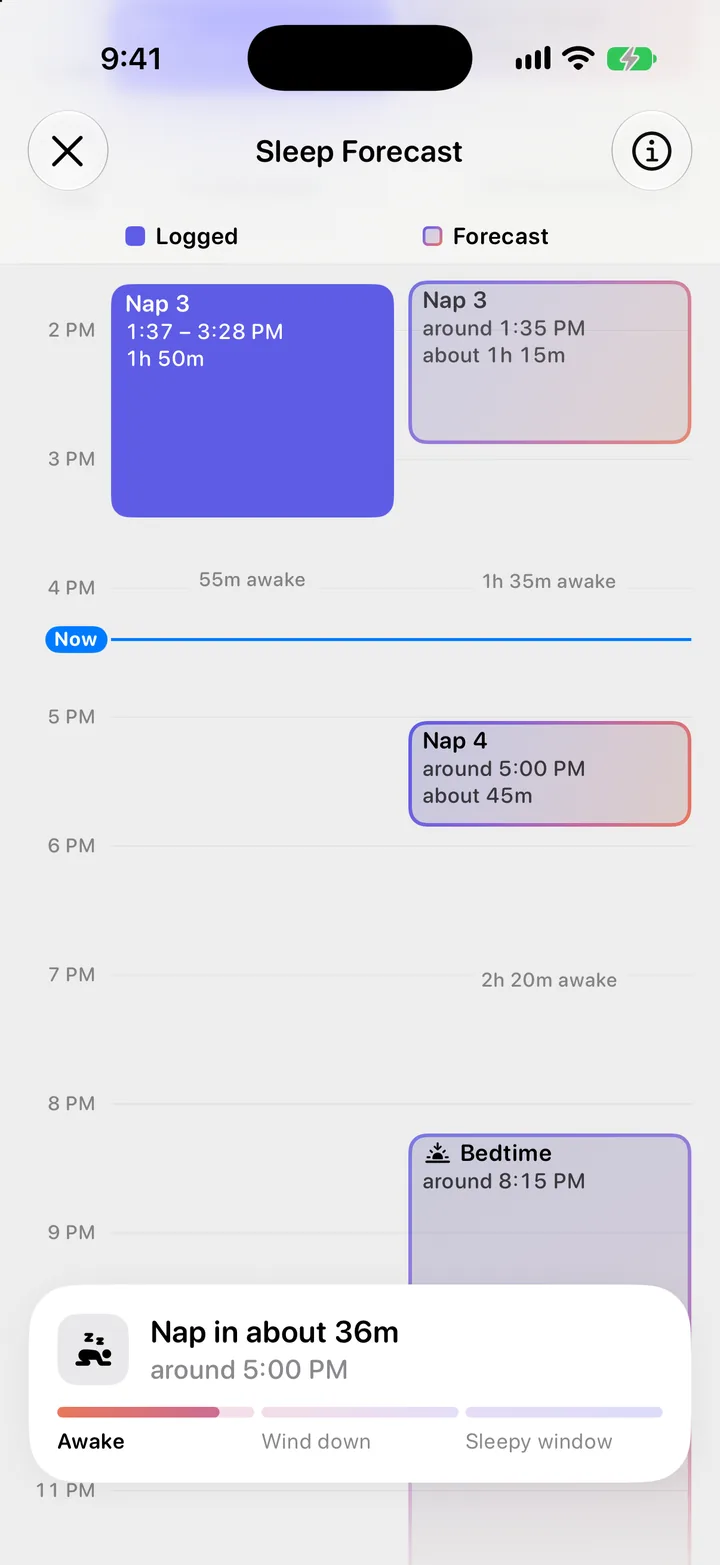
- Logged is your child’s real day: the rise, each nap and bedtime, with exact times.
- Forecast is the rest of the day. A forecast sleep says around a time and about how long. The gaps say how long your child is awake between sleeps.
- The blue Now line marks the present. Above it, each sleep you logged sits beside what was forecast for it. Below it, the day is still ahead.
- A nap that happens on some days only is shown as Possible nap.
When a young child or a new log gives little to go on, Cami speaks in time awake instead of clock times: Awake 35m, then Usually awake 45m–1h 15m at this age. On the day screen, a forecast sleep shows a stretch, such as likely 1:10 – 1:40 PM.
Once there are enough recent naps, the bottom of the screen says how close the forecast has been, for example how many of your child’s last naps began within 30 minutes of it.
How it learns
- It starts from age. On the first day it uses what is usual at your child’s age: how long children that age tend to stay awake, how many naps they take, and when they go to bed.
- It learns from your log. Each sleep you log teaches it your child’s usual wake time, time awake between naps, nap lengths and bedtime. After about five days it follows your child more than their age.
- It joins time awake and time of day. It looks at how long your child has been awake and at the times of day they usually sleep, and leans on whichever has been steadier lately.
- It changes during the day. An early wake, a short nap or a skipped nap moves everything after it. The forecast is drawn again each time you log a sleep. A feed that begins shortly before a forecast nap can move that nap a little later, so log feeds as you go.
If you forget to log a nap, a very long stretch awake is treated as a nap nobody logged, and Cami does not learn from it.
The next nap is the firmest part of the forecast. The later naps of the day, and bedtime, are less certain, because each one depends on the sleeps before it. A wider window means less certainty. A new log, a young age and unusual days all widen it.
Rate today’s forecast
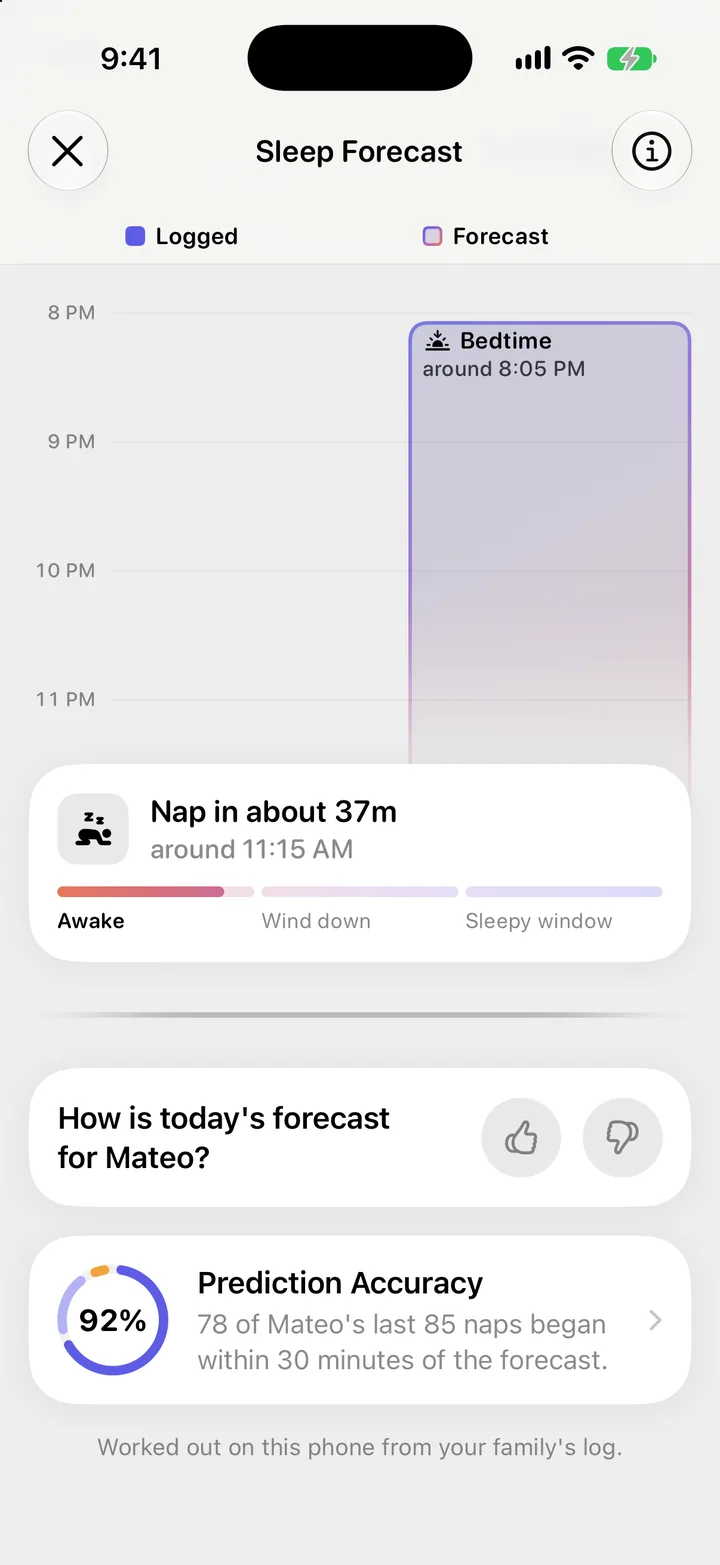
Once your child is up for the day, the day screen asks, for example, How is today’s forecast for Mateo? Tap the thumbs up or the thumbs down. Your answer is for that child and that day. Tap the same thumb again to take your answer back. After a thumbs down, Send Feedback opens a message to the Cami team that starts with Today’s Sleep Forecast was off:, so you can say what was off.
Prediction Accuracy
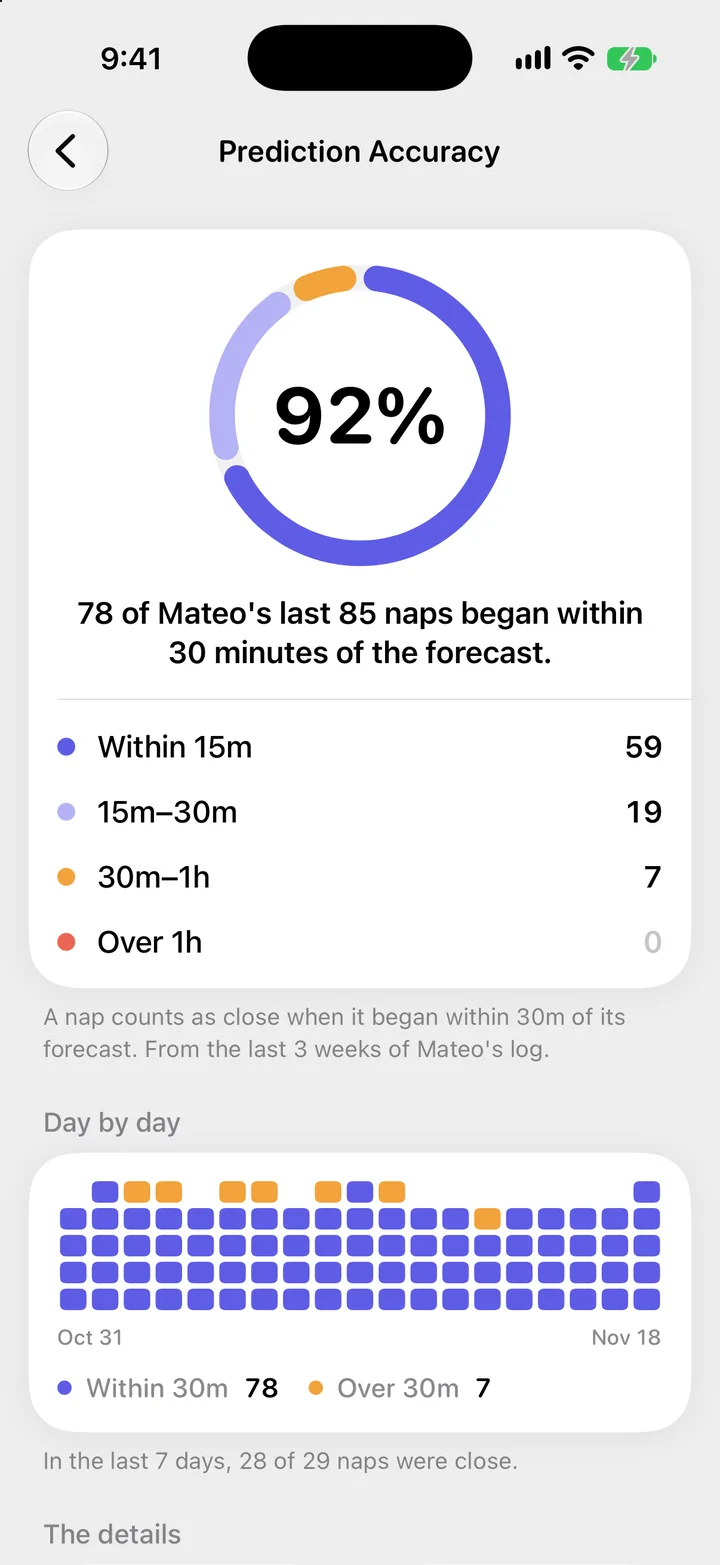
Under the day, the Prediction Accuracy card shows how close the forecast has been for your child. Tap it to open the whole page.
To score itself, Cami replays the last few weeks of your log. Each nap is forecast from the wake before it, using only the days before it, and then compared with when the nap really began. A nap counts as close when it began within 30 minutes of its forecast.
The page shows:
- The score: how many of the last naps began within 30 minutes of the forecast.
- Day by day: each scored day, with how early or late each nap began.
- The details: the usual miss for nap starts and nap lengths, and how close bedtimes were.
- How complete the log is: days with the morning rise logged, days with bedtime logged, and long awake stretches that may hide a nap nobody logged.
- How to improve it: log every nap, log the morning rise, keep the times true, and give changes a few days.
A day with no morning rise in the log cannot be scored. Like the forecast, the score is worked out on your phone.
Nap reminders
Nap reminders are optional. They are off until you turn them on, and they are set on each phone and for each child. They are never sent to the other phones in your family.
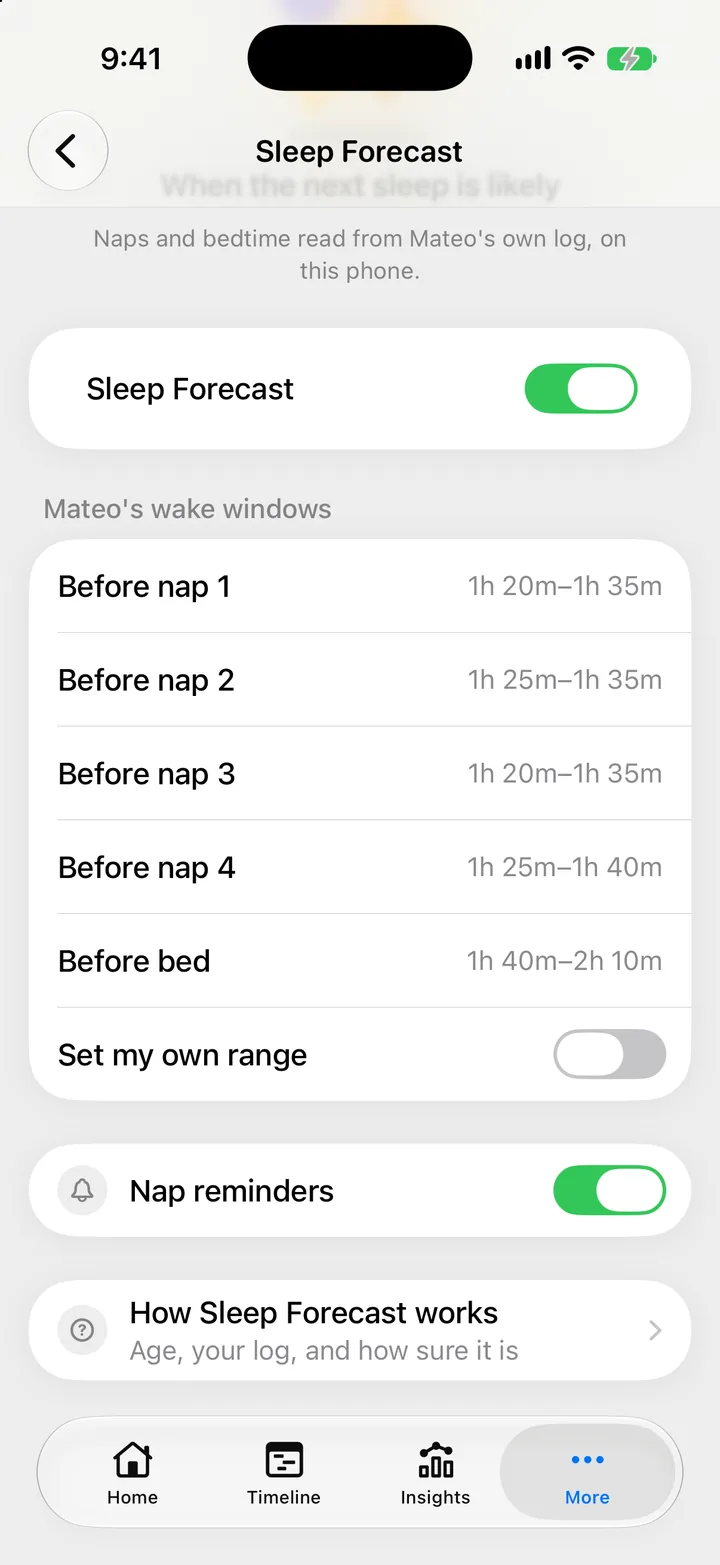
- Open More, then Sleep Forecast.
- Turn on Nap reminders.
- If Cami asks to send notifications, allow them. If iOS Settings has notifications off, the screen says Notifications are off in iOS Settings. Your choice is kept, and reminders come back when iOS allows them.
A reminder arrives when the wind down begins, for example “Mateo: nap around 3:45 PM”, with the line “A good time to start winding down.” Cami sets up to four reminders at a time. It sends none for a possible nap, none for a sleep it is unsure of, and none at night.
The widget
Sleep Forecast has a widget. Touch and hold the Home Screen or the Lock Screen, add a widget, and pick Sleep Forecast. It comes in small and medium sizes for the Home Screen, and rectangular and inline sizes for the Lock Screen. Choose the Child it shows. Tap it to open the day screen. For the steps, see Widgets and Control Center controls.
Wake windows are part of Sleep Forecast
Sleep Forecast replaces the separate Wake Windows screen. In More, Sleep Forecast holds your child’s own wake windows, one for each place in the day, such as Before nap 2 and Before bed. The screen says whether they come from your child’s log or from what is usual at their age.
If you want to keep the forecast inside a range of your own, turn on Set my own range and set the shortest and longest time awake. The forecast stays inside it.
When it is on, and how to turn it off
Sleep Forecast turns on by itself for a child whose naps you log. Under the switch, the screen says why, for example On because you log Mateo’s naps. For a child with no naps logged lately it is off, and the screen says Turns on by itself when you log Mateo’s naps.
To choose for yourself, open More, then Sleep Forecast, and turn the Sleep Forecast switch on or off. Your choice then stays. The switch belongs to each child, so it is the same for everyone in your family. With it off, the card on Home, the day screen, the reminders and the widget go quiet for that child. Turn it on again and the forecast comes back, since it reads your log.
Where it runs, and what it is not
Sleep Forecast is worked out on your phone, from your family’s log. Nothing extra is sent anywhere for it.
Comparing apps for nap times? See Free baby nap predictor app: Cami’s Sleep Forecast.
It is guidance, not a schedule to keep and not medical advice. Sleep changes with growth, illness, teething and travel. For questions about sleep, feeding or health, talk with your pediatrician. For safe sleep, see the AAP’s safe sleep guidance.
Troubleshooting
I don't see the Sleep Forecast card
The card needs a child with sleep logged, and the Sleep Forecast switch on for that child. It turns on by itself once you log naps. It is not shown for a child who is not born yet. If you chose Hide from Home, the forecast is still in Today: turn on Show on Home to bring the card back. Check More, then Sleep Forecast.
The forecast changed when I logged a sleep
That is expected. Each sleep you log moves what comes after it. See How it learns, above.
The forecast says a time, but my child slept earlier or later
Every time is around a time. Follow your child’s cues. A sleep you log teaches Cami your child’s rhythm.
I get no nap reminders
Check that Nap reminders is on for this child on this phone, and that notifications are allowed for Cami in iOS Settings. Reminders are set on each phone, so a partner’s phone needs its own switch.

Still need help?
Write to us and a person reads it, usually within a day. From the app, Get Help attaches the details that help us fix it, and our reply shows in Cami.
In Cami: More › Help Center › Get Help