Guide
Tracking twins: feeds, naps and diapers for two
Add each baby to one family in Cami. Every child gets their own day, totals and timers, and you switch between them by pulling down at the top of Home.

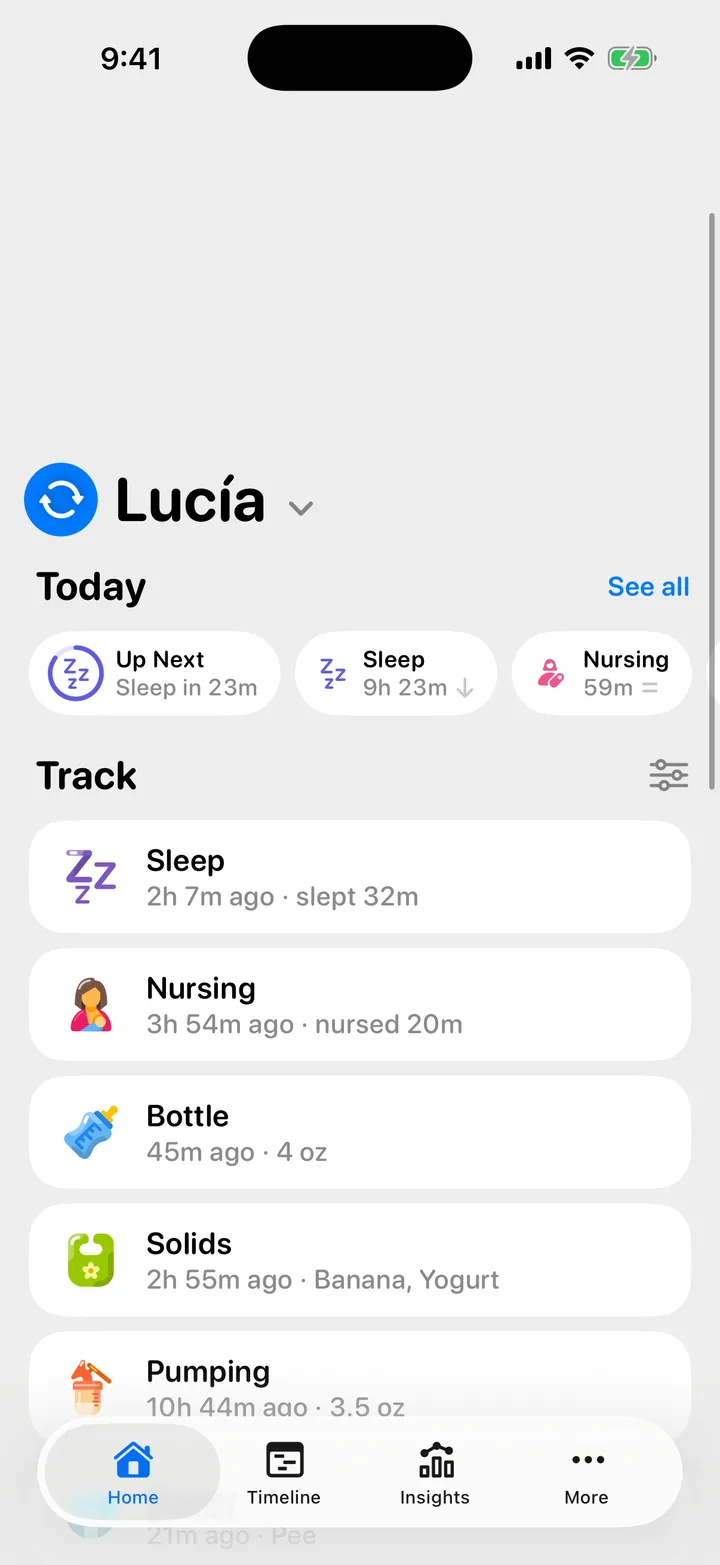
In Cami: Baby Tracker, twins, triplets and a brother or sister who comes later share one family, and everyone you invite sees all of them. This guide is about logging. It does not tell you how to schedule or feed two babies; for that, ask your pediatrician.
Add your second baby
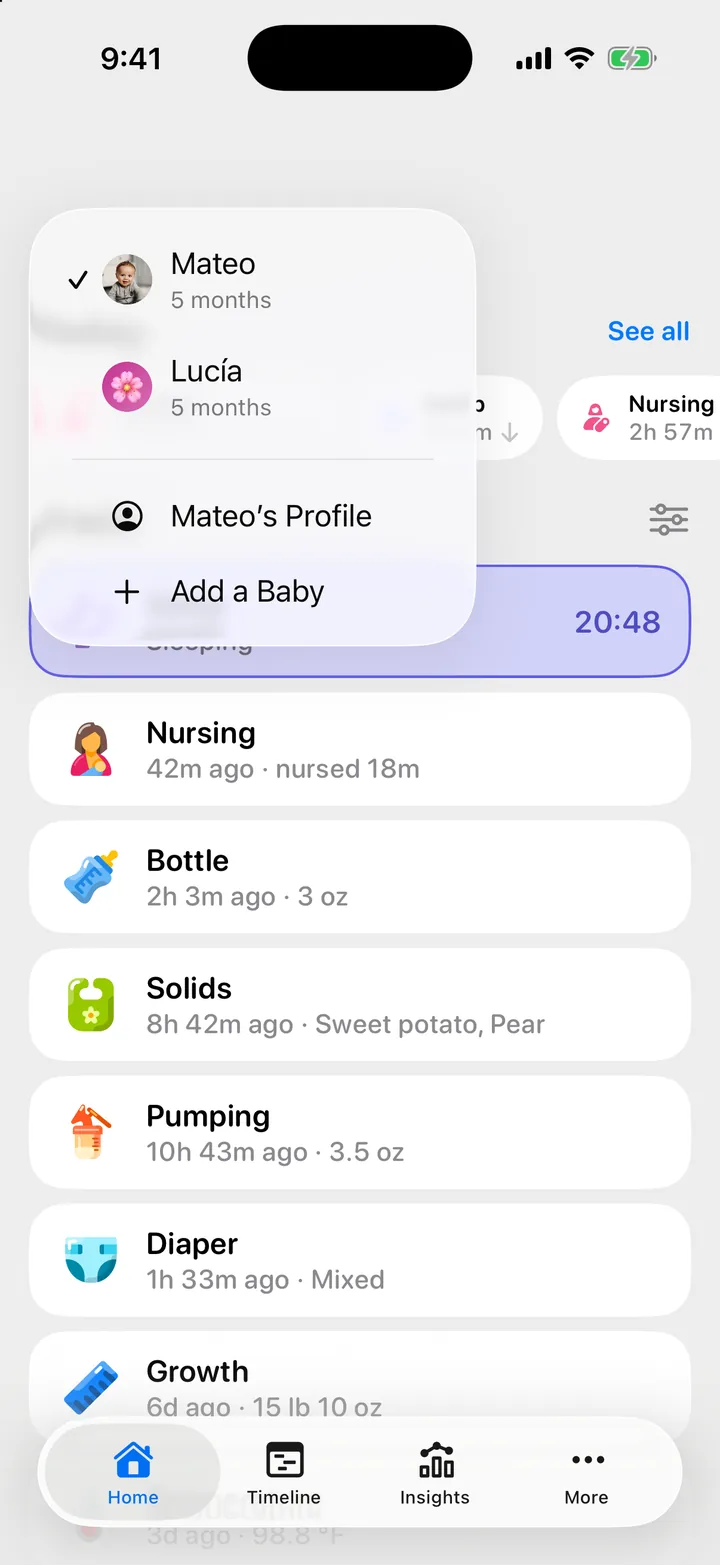
Twins, triplets, or a brother or sister later on — they all live in one family. Add each child once:
- On Home, tap your child’s name at the top.
- Tap Add a Baby and fill in their name and birth date.
You can also add a child from More, Children, New Child.
Tell them apart at a glance
With two babies the same age, a quick look should tell you whose screen you are on. Give each child a photo, or an emoji and a colour: open More, Children, tap the child, then Edit Profile. The picture sits next to the name at the top of Home, and in the menu that switches children.
One child on screen at a time
Cami shows one child at a time, and every tab follows that child: Home, with today’s totals and the Track rows, the Timeline and Insights. That keeps two babies’ feeds, naps and diapers apart, and it keeps each child’s totals honest.
Each entry belongs to one child. To log a feed for both twins, log it once for each. Pumping is the exception: it belongs to the family, so a pumping session shows for every child.
Switch between them
Tap the name. On Home, tap the child’s name at the top and pick the other child.
Pull to switch. At the top of Home, pull down until the switch mark fills, then let go. Cami switches to the other child, with no menu to open.
In Cami 1.2: the pull always goes to the child you viewed last.
Two timers at once
Each child has their own timers. You can run a nap for one twin while you nurse the other, and each running timer gets its own Live Activity on the Lock Screen, with the child’s name on it.
If one child’s cards are too much on your phone, turn Live Activities off for that child only: open the child’s page from More, Children and switch off Live Activities under Settings Overrides. See Live Activities.
Widgets and controls for each child
Widgets and Control Center controls are set to one child. Add one for each twin: for example, two Lock Screen widgets side by side, each showing the time since that child’s last feed. After you add a widget or a control, edit it to choose the baby. See Widgets and controls.
Siri, for the child you name
Siri phrases can name the child, so your hands can stay on the babies: “Start a nap for Mateo in Cami”, “Log a diaper for Lucía in Cami”. See Siri and Shortcuts.
Share the load
Twins usually mean more hands. Invite your partner, a grandparent or a nanny, and each of them logs on their own phone, for either child. Every entry shows who logged it, and it appears on the other phones in about a second. See Invite your partner, a grandparent or a nanny.
Bring history, take history
- Coming from Huckleberry or Nara Baby? Import each child’s file into that child. A Nara Baby file that holds both twins imports only the rows whose name matches the child you import into. See Import your Huckleberry history and Import your Nara Baby history.
- Exporting? Each child exports as its own CSV file, and each file also holds all of the family’s pumping. Read the two files separately; combined, every pumping session would count twice. See Export your child’s log.
Questions
Can I log one feed for both babies at once?
No. Each entry belongs to one child, so log it for each. Pull to switch makes the second one quick.
Do both babies need to be born to add them?
You can add a child before the birth and record the birth later. See Using Cami before your baby arrives.
Does my partner see both babies?
Yes. Everyone in your family sees every child and every entry.
Start logging for both
Cami: Baby Tracker is free on the App Store for iPhone. Download Cami on the App Store, add both babies, and invite the people helping you.
Step by step
- Track twins and siblings, and switch between childrenAdd each child to the same family, then switch with the menu under the child's name at the top of Home, or pull down on Home to switch.
- Invite your partner, a grandparent or a nannyOpen More, tap Invite, and send the link or let them scan the QR code. They join your family and see everything you have logged.
- Timers on the Lock Screen and in the Dynamic IslandWhen anyone in the family starts a timer, it shows on your Lock Screen and in the Dynamic Island. Choose which in More › Settings › Live Activities.
- Export your child's log as a CSV fileOpen More › Data & Privacy, tap your child, then Export Data and save the file. Each child can be exported once every 24 hours.
- Time a nursing session, one side at a timeOn Home, tap Nursing, then tap the breast you're feeding from. Tap the other side when you switch. When you're done, tap Stop Nursing, then Save Nursing.
Cami: Baby Tracker is free on the App Store for iPhone.
Get Cami
Still need help?
Write to us and a person reads it, usually within a day. From the app, Send Feedback attaches the details that help us fix it.
In Cami: More › Settings › Send Feedback