Log pumping and set a pump alarm
Tap Pumping on Home, start the timer, then stop it and enter the amount as a total or per side. After you save, Cami offers a next-pump alarm.

On this page
Time a pumping session
- On Home, tap Pumping .
- Tap Start Pumping.
- When you finish, tap Stop Pumping.
- Under Amount, choose Total for one number, or Left / Right for each side. Set the amount.
- Tap Save Pumping.


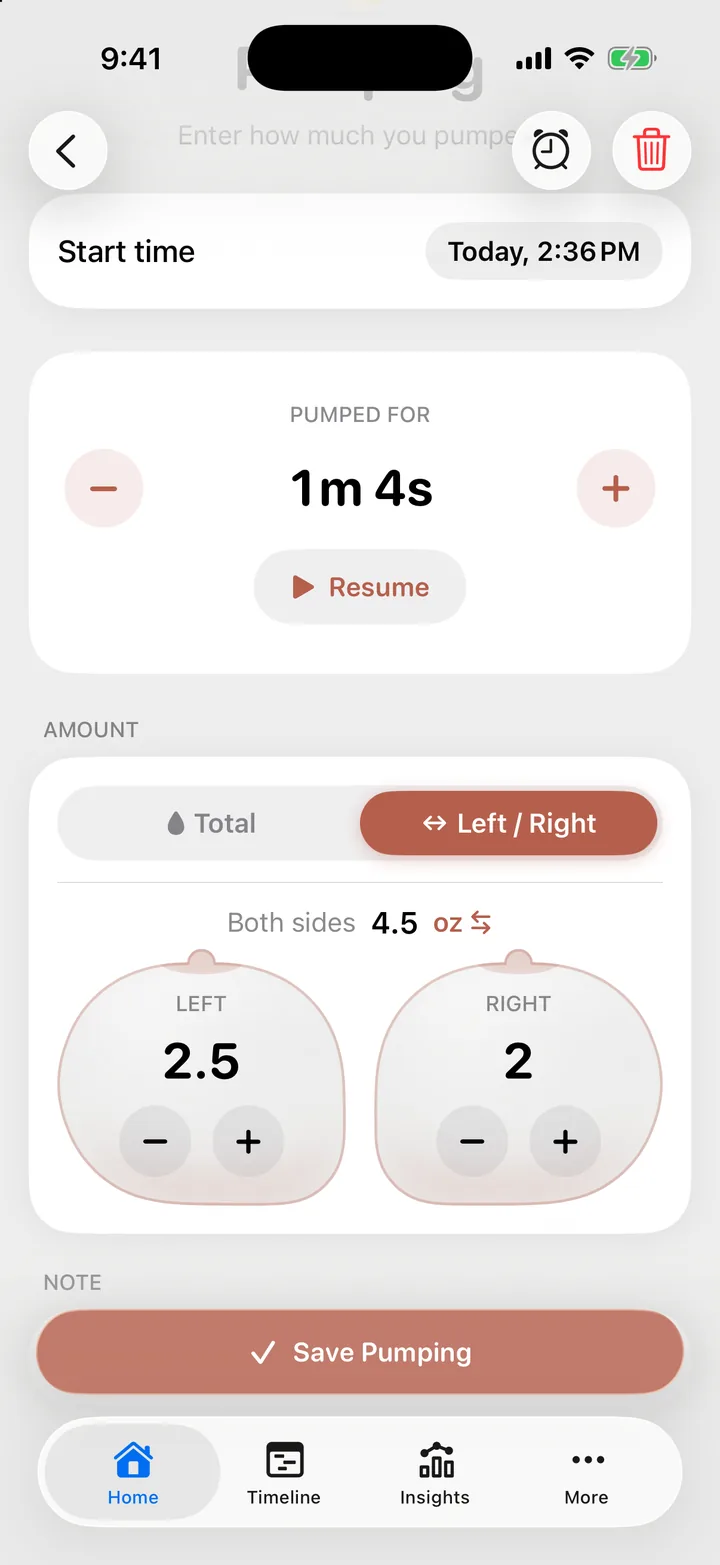
A running pumping timer shows on Home, and on your Lock Screen when Live Activities are on. You can leave Cami while it runs.
Log a session you did not time
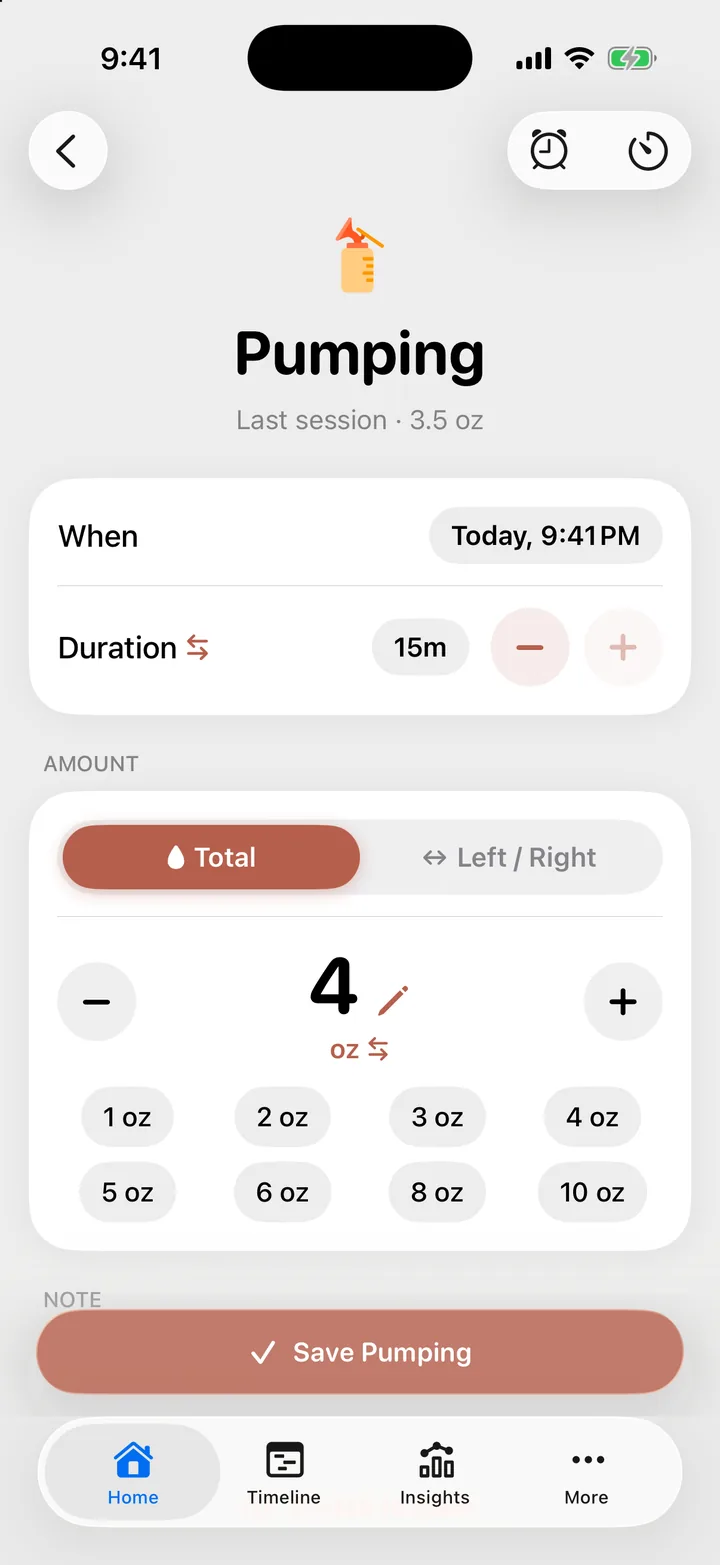
- Open Home, Pumping and tap Switch to manual entry at the foot of the form.
- Set When it started and the Duration. To type an end time instead, tap the switch on the Duration row.
- Enter the amount and tap Save Pumping.
Set an alarm for the next pump
After you save a session, Cami shows Next pump. You can also open it any time with the alarm button at the top of the Pumping form.
- Choose how to set the time: After pump (counted from the start of your last session; it reads After feed when you nursed more recently), In (from now) or At (a clock time).
- Pick the time.
- Tap Set alarm.
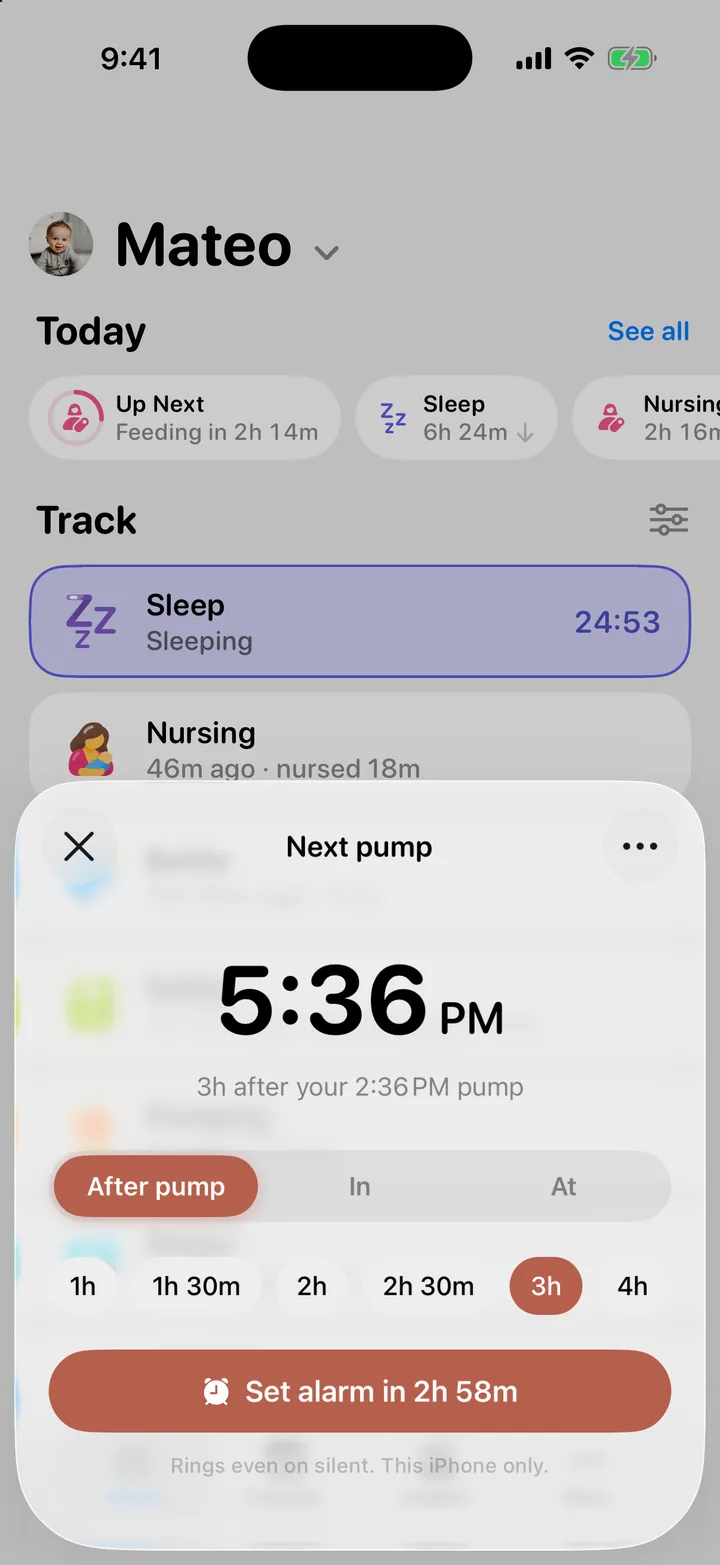
The alarm rings even when your iPhone is on silent. When it rings, you can stop it or tap Start pumping. The countdown on your Lock Screen has a button to snooze it for 15 minutes.
To change the time, open Next pump again and tap Move alarm. To cancel it, tap Turn off alarm.
The alarm is for this iPhone only. Your partner’s phone does not ring.
Alarm options
In Next pump, tap the Alarm options button (•••):
- Ask after each pump: turn off to stop the sheet from opening after every save.
- Show on Lock Screen: shows the countdown to the next pump on your Lock Screen.
Pumping belongs to the family
A pumping session is yours, not one child’s. With twins or siblings, your pumping shows on each child’s Timeline, and the export of each child includes it. Only one pumping timer can run at a time in your family.
Troubleshooting
Cami says alarms are blocked
You told iOS not to let Cami set alarms. Tap Allow alarms in Settings in the Next pump sheet and turn alarms on for Cami.
Cami asks to turn off my next pump alarm
If an alarm is set when you start pumping, Cami asks Turn off your next pump alarm?. Tap Turn it off and start or Keep it on and start.

Still need help?
Write to us and a person reads it, usually within a day. From the app, Send Feedback attaches the details that help us fix it.
In Cami: More › Settings › Send Feedback