Log weight, length and head size, and set growth reminders
Tap Growth on Home, enter the weight, length or head size you have, and tap Save. The bell on the form sets a reminder for the next growth check.

Log a growth check
- On Home, tap Growth .
- If you measured on another day, tap Now next to When and pick the date.
- Under Measurements, tap Weight, Length or Head and type the value.
- Tap Save.

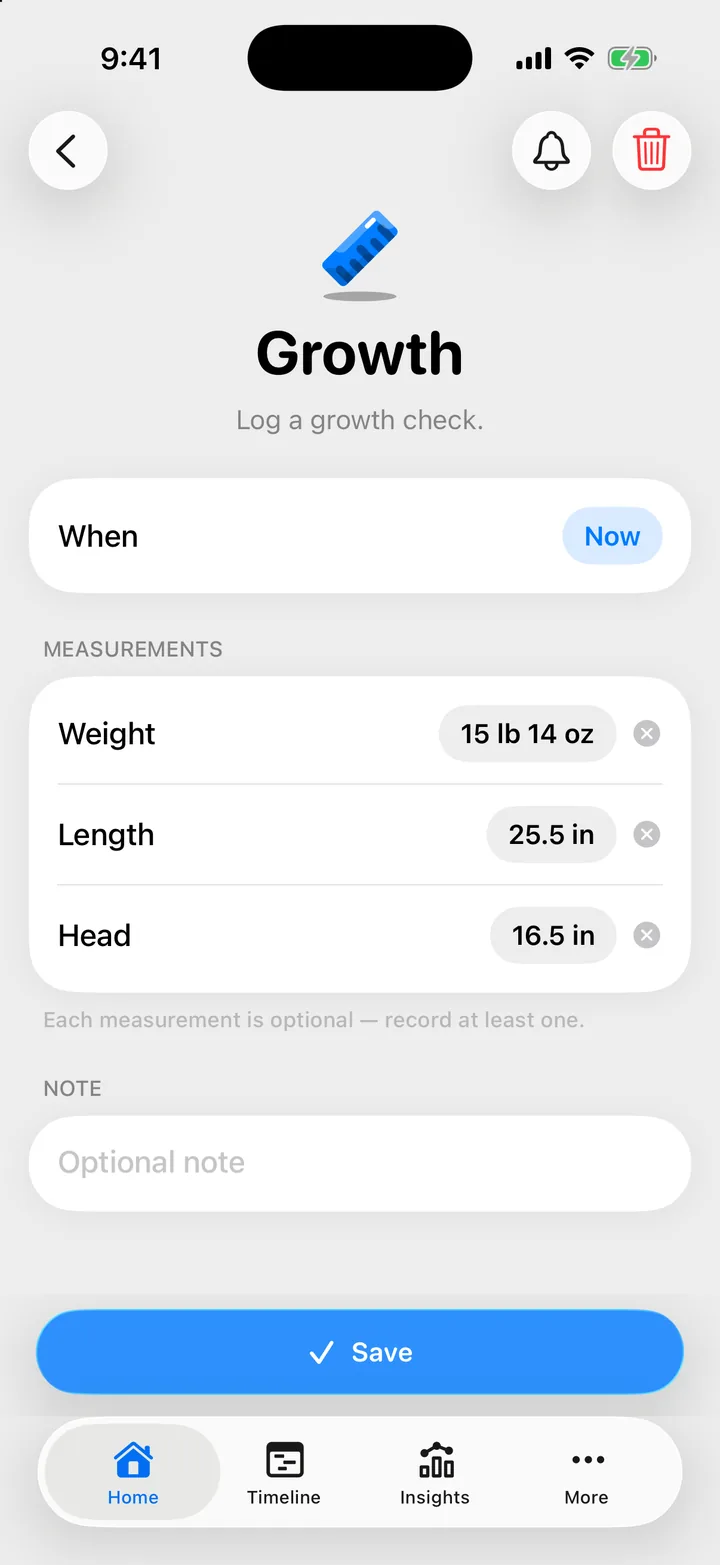
Each measurement is optional, but an entry needs at least one. To remove a value before you save, tap the clear button beside it.
Units
Cami uses the unit set in More, Settings, General, Measurements:
- Metric: kilograms and centimeters.
- US: pounds and ounces, and inches.
You can also switch while you type: the keypad for each measurement shows both units. The choice applies to this iPhone. Your partner can use the other unit and still see the same numbers.
In Cami 1.2: Measurements is in More › Settings.
Set growth reminders
- On the Growth form, tap the bell at the top of the screen (Growth reminders).
- Turn on Remind me. If iOS asks, allow notifications for Cami.
- Under Remind every, choose how often.
- Set the Reminder time, then tap Done.
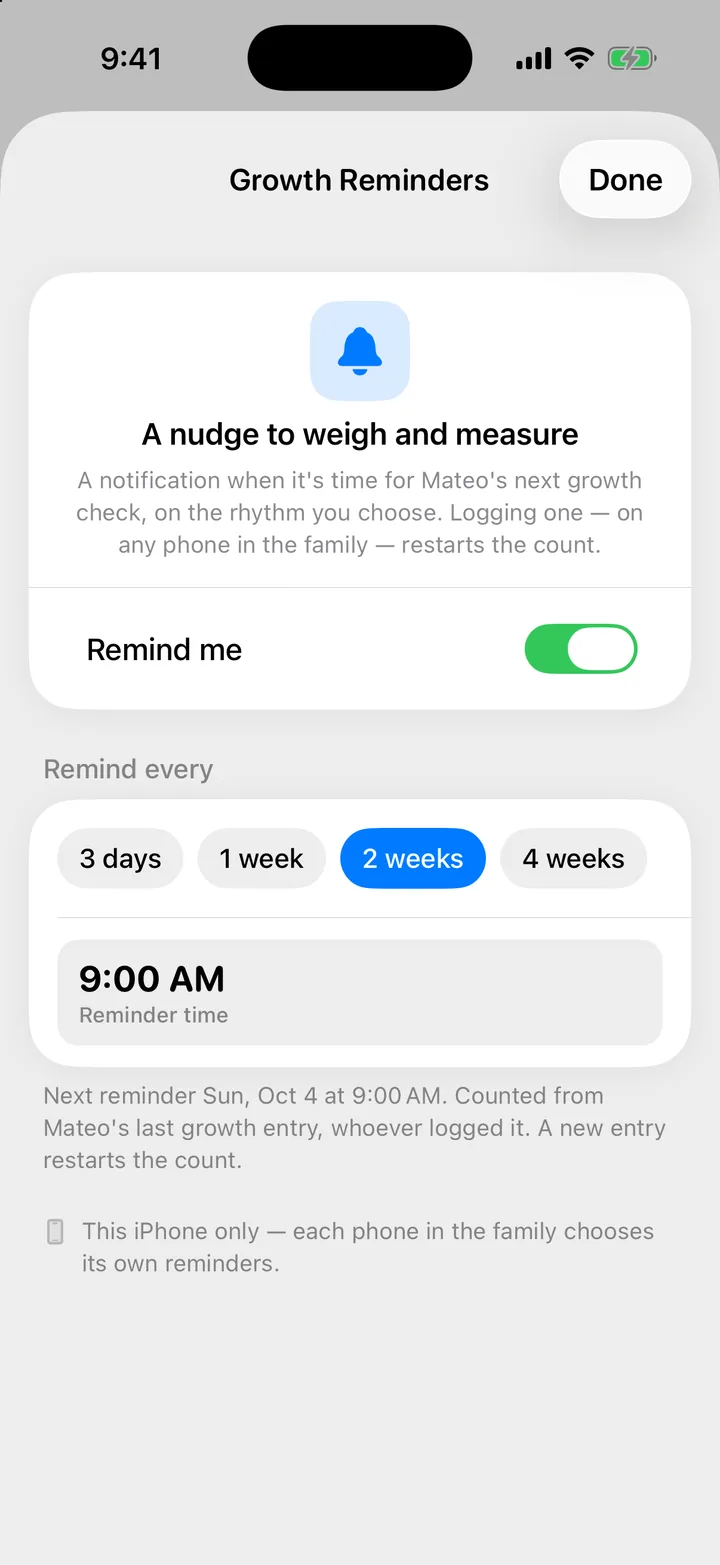
The count starts from your child’s last growth entry, whoever logged it. A new entry on any phone in the family restarts it.
Reminders are for this iPhone only. Each phone in the family chooses its own.
See the chart
Your entries show in Insights as a chart over percentile curves. See Insights, patterns and the growth chart.
Troubleshooting
Growth reminders say notifications are off
Notifications for Cami are off in iOS Settings. Tap the row that says so to open Cami’s page in Settings, and turn notifications on. Your rhythm is kept.
Save is gray
Enter at least one measurement. An entry with no weight, length or head size cannot be saved.

Still need help?
Write to us and a person reads it, usually within a day. From the app, Send Feedback attaches the details that help us fix it.
In Cami: More › Settings › Send Feedback