Guide
Switching from Huckleberry, with your history
Export a CSV from Huckleberry, import it into Cami and invite everyone who cares for your baby. Your history comes along; Huckleberry stays as it is.

Moving to Cami: Baby Tracker takes a few minutes per child. Cami only reads a file you export, so your Huckleberry account stays as it is while you try Cami. This guide covers the move itself, what comes across, and what to set up after.
What comes with you
Cami reads Huckleberry’s CSV export directly. This is what the import does with each kind of row:
| From Huckleberry | Comes across as |
|---|---|
| Sleep | Sleep, with start and end |
| Breast feeds | Nursing, with the minutes on each side |
| Bottle feeds | Bottle, with the amount and formula or breast milk |
| Diapers | Diaper changes, with a size in the note |
| Pumping | Pumping, with the amount |
| Solids | Solids, with each food, how much, how your child liked it and a reaction |
| Notes | Notes, on the same entries |
| Growth, temperature, tummy time, screen time | Skipped, and counted in the import summary |
Imported entries join your child’s history for the whole family. Your partner does not need to import anything: they see the same history on their own phone as soon as they join.
Imported entries show the person who ran the import under Logged by.
Step 1: export from Huckleberry
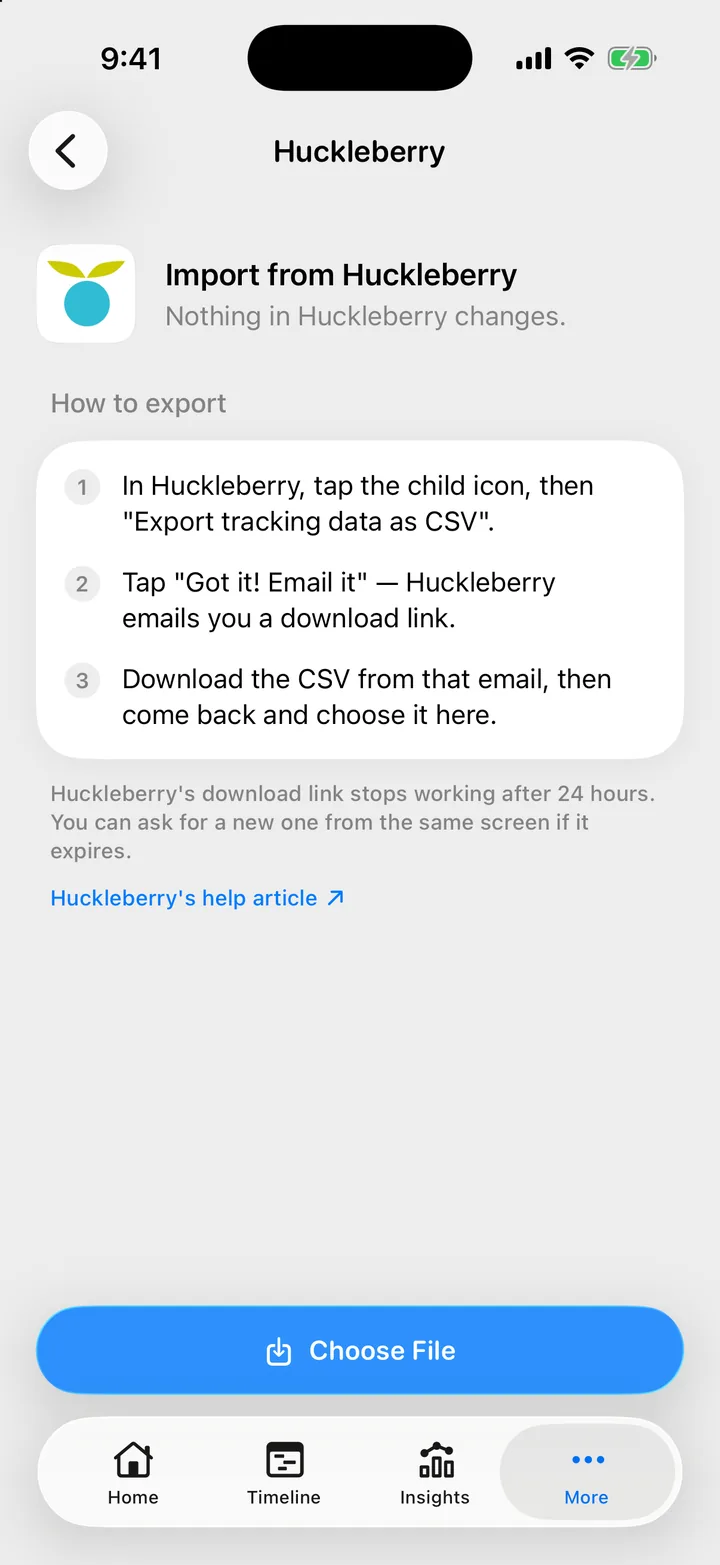
Huckleberry emails you the export. Its help center describes the steps: tap the child icon in the menu bar, scroll down, tap Export tracking data as CSV, then Got it! Email it. The email holds a download link that works for 24 hours (Huckleberry: Can I export my data from the app?, checked 25 September 2026).
Download the file on your iPhone and save it to Files. With more than one child, export once per child.
Step 2: import into Cami
Install Cami and set up your family. When Cami asks Have you used a baby tracker app before?, answer Yes, I’m coming from another app and choose the file on Bring your history. Your history is added the moment your child is created.
Already set up? Open More, Data & Privacy, tap your child, then Import Data, Import from Huckleberry, Choose File.
The summary tells you how many entries came in and which rows were skipped. Every step, with screenshots: Import your Huckleberry history.
Step 3: invite everyone who cares for your baby
In Cami, each person has their own account in one shared family. Your partner, a grandparent or a nanny signs in with Apple, Google or an email address, joins your family, and logs on their own phone. Each entry shows who logged it, and it reaches the other phones in about a second.
Huckleberry documents a different setup: its help center says the way to share is to log in with your account on your partner’s phone (Huckleberry: How do I share my account with my husband/wife/partner or another caregiver?, checked 25 September 2026). In Cami you do not share a password. You send an invite:
- Open More and tap Invite, the QR code button at the top.
- Tap Share Link to send it, or Share QR Code to show it to someone next to you.
- They install Cami and open the link, or scan the code.
In Cami 1.2: tap Share Invite on the invite screen.
Roles such as Nursing parent or Caregiver are labels. Everyone in the family sees and logs the same things. The family owner can remove a member at any time, and can make a new invite link that stops the old one. More: Invite your partner, a grandparent or a nanny and Join a family.
Step 4: set up the everyday things
A few things are worth doing in your first hour with Cami:
- Timers on the Lock Screen. Sleep, nursing, pumping and bottle timers show as Live Activities, for everyone in the family. See Live Activities.
- Widgets and controls for the Home Screen, the Lock Screen and Control Center. See Widgets and controls.
- Siri. Start and stop timers, or log a bottle or a diaper, by voice. See Siri and Shortcuts.
- Units, language and dark mode. Milliliters or ounces, and Cami in English or Spanish. See Language, appearance and units.
- More than one child? Import each child’s file into that child, then pull down at the top of Home to switch. See Twins, siblings and more than one child.
Questions people ask before they switch
Does anything change in Huckleberry?
No. Cami only reads the file you exported. Your Huckleberry account and its data stay as they are.
Can I use both apps for a while?
Yes. Import once to start, and import a newer export later. Entries that are already in Cami are skipped. If you changed an entry in Huckleberry in between, the changed version arrives as a new entry, and you can delete the old one.
Is Cami in Spanish?
Yes. The whole app is in English and Latin American Spanish, and it follows your iPhone’s language. See Requirements and languages.
What does Cami need?
An iPhone with iOS 26 or later. Cami is free on the App Store in the United States and Mexico.
Can I get my data out of Cami later?
Yes. Any member can export a child’s log as a CSV file, once every 24 hours per child. See Export your child’s log.
Bring your history over
Cami: Baby Tracker is free on the App Store for iPhone. Download Cami on the App Store, import your Huckleberry file, and send your partner the invite.
Step by step
- Import your Huckleberry historyExport a CSV from Huckleberry, then in Cami open your child's data, tap Import Data › Import from Huckleberry and choose the file.
- Invite your partner, a grandparent or a nannyOpen More, tap Invite, and send the link or let them scan the QR code. They join your family and see everything you have logged.
- Join your family on CamiScan the family's QR code, open their invite link, or type the six-character code. You see everything they logged, from the very first entry.
- Track twins and siblings, and switch between childrenAdd each child to the same family, then switch with the menu under the child's name at the top of Home, or pull down on Home to switch.
- Export your child's log as a CSV fileOpen More › Data & Privacy, tap your child, then Export Data and save the file. Each child can be exported once every 24 hours.
Cami: Baby Tracker is free on the App Store for iPhone.
Get Cami
Still need help?
Write to us and a person reads it, usually within a day. From the app, Send Feedback attaches the details that help us fix it.
In Cami: More › Settings › Send Feedback